
Day 21 of the Week 3: Layout and Polish series — the final post in Week 3.
You've spent real time building a section that's finally working.
The right image, words, and spacing. It looks good, it reads well, visitors seem to engage with it. And now you want to try something different.
Maybe a different layout or column arrangement. Perhaps even a slightly different approach to how the text is positioned or how images are sized.
But something holds you back.
What if you try the new version and it looks worse?
What if you can't get back to what was working?
So instead, you leave it as it is. The experiment never happens. The site stays exactly the same.
Key Takeaways: How to Edit Your Website Layout Safely
- You can edit your website layout without losing the original design by duplicating a section before making changes.
- Keep the original section untouched and make your layout, spacing, text, or image changes on the duplicate.
- Comparing the original and duplicate makes it easier to decide which website layout you prefer.
- If the new design doesn't work, delete the duplicate and keep the original.
- Changes made inside the editor won't affect your live website until you Publish them.
- Duplicating before editing gives beginners a simple safety net for experimenting with their website design.
Your Week 3 Roadmap: Layout and Polish
Weeks 1 and 2 got your website online. Now it’s time to make it shine.
Over the next week we’ll cover:
- Why You Haven’t Touched Your Website Since You Published It
- Why Your Site Looks Cluttered Even With Good Content
- Why Your Footer Is a Missed Opportunity
- Why All Your Buttons Look Equally Important
- Why Your Navigation Menu Is Confusing People
- Why Clicking Your Own Site Reveals More Broken Things Than You Expected
- Why You’re Afraid to Experiment With Your Layout (this post)
The Problem: "What If I Can't Undo It?"
For most beginners, the worry isn't about making things prettier. It's about losing what's already good.
The fear of breaking something that's working creates a kind of creative paralysis that's hard to shake without a safety net.
So you don't experiment. You don't try a new layout or adjust something that could actually make the page better.
But here's what most beginners don't know: your Website Builder has a built-in safety net called Duplicate.
The Solution: Duplicate Before You Edit Your Website Layout
Instead of editing your existing section directly, make a copy first.
That copy becomes your working draft. The original stays untouched as your fallback.
Now you can rearrange columns, change spacing, rewrite a headline, swap an image, or try something completely different without worrying about losing the original.
If the experiment works, keep the duplicate.
If it doesn't, delete it.
That's your safety net.
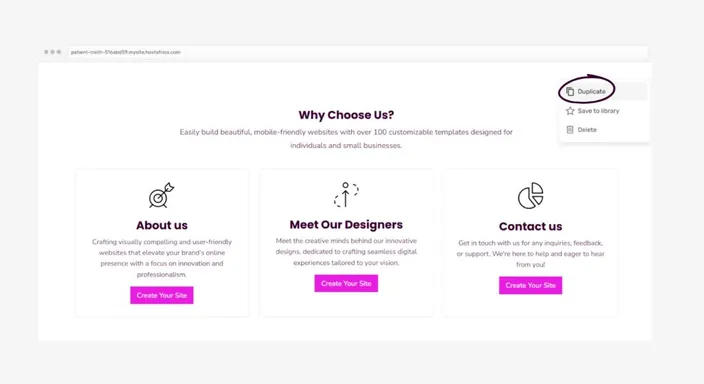
How to Edit Your Website Layout With Duplicate
Step 1: Duplicate Your Existing Section
In your website editor, find the section you want to experiment with, whether that's your hero section, benefits row, testimonials, or anything else you've put real work into.
Open the section settings and select Duplicate. An identical copy should appear below the original.
At this point, you haven't lost anything. Your original design is still sitting safely above it.
Step 2: Make Your Changes on the Duplicate
Now work on the copy freely. Try a different column layout. Adjust your spacing. Rewrite the headline. Swap the image. Move things around.
You're not touching the original, so there's nothing to lose.
Just remember: don't Publish while both versions are sitting on the page. Keep your experiment inside the editor until you've decided which one you want.
Step 3: Compare and Decide
Look at the two versions together.
Which one looks cleaner? Which one is easier to read? Which version makes the next step clearer for a visitor?
If you're unsure, leave it for a while and come back with fresh eyes. Sometimes yesterday's design masterpiece looks slightly less magnificent after a cup of coffee the next morning.
Step 4: Keep the Version You Prefer
Once you've decided, delete the version you don't want.
If the new version works: Delete the original and keep your edited version.
If it doesn't: Delete the duplicate and keep what was already working.
Either way, you haven't had to rebuild anything from scratch.
When Should You Duplicate a Section?
You don't need to duplicate something every time you change a full stop.
It's most useful when you're making a change you're unsure about.
Maybe you want to try a different hero layout, turn a list of benefits into cards, change your columns, or test design feedback someone has given you.
Instead of immediately changing something you already like, try the idea on a duplicate first.
It takes a few seconds and gives you the freedom to experiment without that little voice asking, "What if I ruin it?"
What Happens to Your Live Website While You're Editing?
Your live website stays untouched while you're working in the editor.
Visitors continue seeing whatever version you last published. Your experiments only become visible when you click Publish.
That means you can take your time, compare the layouts, and decide which version you actually want before anyone else sees it.
Frequently Asked Questions
Can I duplicate a full page?
The Duplicate feature works section by section, so for a larger redesign, work through the page one section at a time. Be cautious with going for a completely new website template.
Can I create more than one duplicate?
Yes. You can try several versions if you want to compare different layouts. Just delete the ones you don't need once you've made your decision.
What if I accidentally edit the original?
That's why it's worth checking which section you're working on before you begin. Treat the original as your backup and make your experiments on the duplicate.
How long can I keep a duplicate before publishing?
You don't need to rush your decision. Keep your experiments in the editor until you're happy with the version you want to publish.
Do I need to duplicate every time I edit my website?
No. Save this approach for bigger layout or design changes where you want the security of keeping the original version.
Habit to build: Get into the habit of duplicating before editing any section you've put real work into. It takes a few seconds upfront and could save you a frustrating rebuild later.
Week 3: Layout and Polish Complete
You Just Finished Week 3!
Over the last few days, you've learned about footers, button hierarchy, broken links, and risk-free experimentation.
Your website is now looking cleaner, working better, and becoming much easier to manage without second-guessing every change.
Next up: Week 4.
Ready to experiment without the risk? Try HostAfrica's Website Builder free for 14 days and use the Duplicate feature in your editor today. It's a quick, high quality solution to creating a website for your business.
Pick a section, duplicate it, and try something new. You've got nothing to lose.
