
Day 26 of the Week 4: Trust, Conversion & Launch Technicals series.
You've built the site, connected the domain, and run the thumb test. Everything looks good. You're about to post your link on Instagram or send it to your mailing list.
That's exactly the moment to pause for five minutes.
There's one problem that's almost impossible to spot while you're building, and very easy to spot once a real visitor finds it for you: broken links and unconnected buttons.
A visitor who clicks a "Contact Us" button and lands on an error page doesn't give you the benefit of the doubt. They leave, and they don't come back.
Key Takeaways: Check Website Links Before Launch
- Check website links before launch by opening your live site on your phone, not the editor.
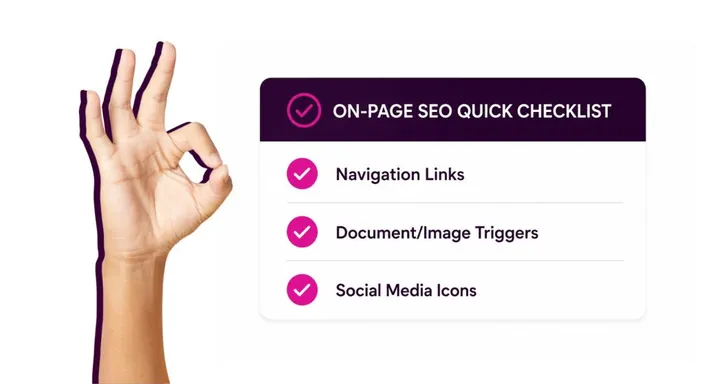
- Run three checks: navigation links, downloads and clickable images, and social media icons.
- Fix each broken link as soon as you find it, then republish and retest from the live site.
- Free link checker tools suit large sites, but a manual check is faster for a small business site.
- Broken or placeholder links can make a legitimate site look untrustworthy, which costs you visitors and conversions.
Your Week 4 Roadmap: Trust, Conversion & Launch Technicals
You’ve built the site, switched on the features, and polished the design. Week 4 is about the final layer, the technical and trust signals that tell visitors and search engines your site is legitimate, secure, and ready for business:
- How to Connect Your Domain to Your Website
- Why Your Site Might Show a “Not Secure” Warning After Launch
- Why You Think You Need to Transfer Your Domain (You Probably Don’t)
- Why Your Site Looks Perfect on Your Laptop but Loses Customers on Their Phones
- Why Your Last Check Before Launch Is the Most Important One (this post)
- Why Nobody Trusts a Website With No Reviews On It
- Why Your Site Looks Different in Your Browser Than on Everyone Else’s
- How Subdomains Let You Grow Without Starting Over
- The 5-Point Launch Checklist: How to Know You’re Actually Ready
The Problem: You're Too Close to Your Own Site
Broken links are nearly invisible when you're the one who built the site.
You know where everything is supposed to go, so your brain fills in the gap. You see a "Contact Us" button and register it as working, even if the destination was never set up.
Why this is dangerous:
- Your first real visitors find the broken link before you do
- A visitor who hits an error doesn't email you about it, they just leave
- Broken links damage credibility and reduce conversions
- Search engines treat lots of broken links as a sign of a poorly maintained site
The best time to check links is the moment before you send traffic to your site. Right now, a broken link is still yours to catch, not your visitor's problem to experience.
Why Broken Links Make Visitors Nervous
Your visitors have learned to be careful online. Between phishing attacks, malicious websites, and fake websites built for identity theft, most people now hover over a link before clicking. They also think twice about anything that looks off.
A button that leads to an error page, a social icon that goes nowhere, or a shortened URL with no clear destination can set off the same alarm bells as a suspicious email. Your site may be perfectly safe, but if it behaves like it's half-finished, visitors may start wondering whether it's legit.
As far as they're concerned, working links are part of website safety. Nobody wants to be the business that accidentally looks like it's sending phishing attempts or malicious links.
The Solution: Your 3-Point Pre-Launch Audit
Open your live site on your phone (the actual live URL, not the editor) and work through these three checks in order.
Check 1: Click Every Navigation Link
Go through your menu one link at a time:
- Open your homepage
- Tap the first link in your main navigation
- Confirm you landed on the right page (check the heading or URL)
- Go back and repeat for every link
Pay special attention to:
- Links you added or moved recently (the most likely to have lost their destination)
- Every link inside dropdown menus
- External links (check they open in a new tab if you intended them to)
- "Coming Soon" pages (clearly labelled, not silently broken)
Found a broken link? Stop and fix it in your editor before moving on. Reconnect it to the correct page, republish, and test again from the live site. That way, you never lose track of what still needs fixing.
Check 2: Test Downloads and Clickable Images
If your site has downloadable files like menus, brochures, or price lists, click each one. Make sure the file actually opens, and skim it to check it isn't corrupted.
Then click any service images, portfolio pieces, or gallery thumbnails that are meant to be clickable. Each one should load properly and take you to the right destination.
If a download fails, the file was usually deleted or its link path changed during editing. Re-upload or reconnect the file in your editor, then test again from the live site.
Check 3: Check Your Social Media Icons
This is the most commonly broken item on small business websites. Template icons often default to placeholder links instead of your actual profiles.
Click each icon in your header, footer, or contact section, and confirm it opens your profile. Watch for:
- Links to the Facebook or Instagram homepage instead of your page
- Links that go to # (a placeholder that goes nowhere)
- Icons for platforms you don't actually use (remove them)
- Old profile links from before you changed your username
To fix one, paste your full profile URL into the icon settings (for example, Yourbusinessname , not just "Facebook"). Skip shortened URLs here. Visitors can't see where they lead, and some will be wary of clicking.
Common Broken Link Issues and How to Fix Them
Navigation link goes to the wrong page
- Cause: The link was changed or misconnected during editing.
- Fix: Click the link in your editor, select the correct destination page, and republish.
Social icon opens the platform's homepage
- Cause: The template placeholder URL was never replaced.
- Fix: Paste your full profile URL into the icon settings and republish.
Download shows a 404 or "File Not Found" error
- Cause: The file was deleted, moved, or the link path is wrong.
- Fix: Delete the broken link, re-upload the file, and reconnect it.
Button works in the editor but not on the live site
- Cause: The destination page is saved as a draft but hasn't been published.
- Fix: Publish (not just save) the destination page, then republish your site.
Link opens in the same tab when you wanted a new one
- Cause: "Open in new tab" isn't enabled.
- Fix: Turn it on in the link settings and republish.
Automated Link Checker Tools vs. Manual Testing
A free link checker like Broken Link Checker can scan the URL of every page on your site and flag dead links. This kind of URL checker is handy for larger sites with hundreds of pages.
For a small business site, though, checking links manually is faster and catches more:
- You spot usability issues a checker tool misses, like buttons that are too small to tap
- The whole audit takes about five minutes
- You test the way a real visitor would, on your actual phone
- You fix problems immediately and see the results in real time
Quick Tip:
Fix broken links one at a time as you find them. Fix, republish, test from the live site, then move on. It's the easiest way to make sure nothing slips through.
FAQs: Check Website Links
How do I check website links before launch?
Open your live site on your phone and click every navigation link, download, clickable image, and social icon. Fix anything broken in your editor, republish, and retest from the live site.
What if I find a broken link after I've shared my site?
Fix it as soon as possible. Reconnect the link in your editor and republish. The live site updates within minutes.
What's a 404 error?
A 404 error appears when a link points to a page that doesn't exist, usually because the page was deleted or renamed, or the link was typed incorrectly.
Should I test every page, or just the homepage?
For a small site, testing your homepage navigation and main content areas is enough. For larger sites, scan with an automated tool first, then spot-check the results manually.
How do I prevent broken links in the future?
Whenever you delete a page, update any menu links pointing to it first.
Next in this series: Why Nobody Trusts a Website With No Reviews On It →
Ready to launch with confidence? Log into your HostAfrica dashboard and run your pre-launch audit today. Five minutes now saves you frustrated visitors later.
