
Part of Week 4: Trust, Conversion & Launch Technicals — Day 22. Just finishing up Week 3? Catch up from the beginning
Imagine you've just built a beautiful online store. The design is clean, your pages are ready, and you're almost at the finish line.
Then you realize: your site is still running on a generic address instead of your actual business domain.
You open your domain registrar's DNS settings panel. Rows of unfamiliar entries stare back at you, MX records, TXT strings, TTL values. None of which you asked for or understand.
Your instinct kicks in: don't touch anything in case you break something.
Here's the relief: to connect your domain to your website, you generally only need to update the DNS records your Website Builder gives you.
Key Takeaways: How to Connect a Domain to a Website
- To connect a domain to a website, you need to point your domain's DNS records to the destination provided by your Website Builder.
- Your Website Builder will provide the DNS values you need to enter, commonly including an A Record and CNAME Record.
- An A Record can point your main domain to the server hosting your website.
- A CNAME Record can be used to point another hostname, such as the www version of your domain, to the correct destination.
- Leave unrelated MX, TXT and other DNS records unchanged unless your provider specifically instructs you otherwise.
- DNS changes aren't always instant, so allow time for DNS propagation before assuming something has gone wrong.
Your Week 4 Roadmap: Trust, Conversion & Launch Technicals
You've built the site, switched on the features, and polished the design. Week 4 is about the final layer, the technical and trust signals that tell visitors and search engines your site is legitimate, secure, and ready for business:
- How to Connect Your Domain to Your Website (this post)
- Why Your Site Might Show a "Not Secure" Warning After Launch
- Why You Think You Need to Transfer Your Domain (You Probably Don't)
- Why Your Site Looks Perfect on Your Laptop but Loses Customers on Their Phones
- Why Your Last Check Before Launch Is the Most Important One
- Why Nobody Trusts a Website With No Reviews On It
- Why Your Site Looks Different in Your Browser Than on Everyone Else's
- How Subdomains Let You Grow Without Starting Over
- The 5-Point Launch Checklist: How to Know You're Actually Ready
Let's start with the step most beginners dread and get it out of the way first.
Why Your DNS Panel Looks So Intimidating
When you open a domain registrar's DNS panel, it can look overwhelming. There's a spreadsheet full of technical entries with unfamiliar abbreviations: A Records, CNAME, MX, TXT and more.
But you don't need to understand every record to connect your domain.
A DNS panel is a little like a phone book for the internet. When someone enters your domain, DNS helps their browser find the correct destination.
Your job is simply to take the connection details provided by your Website Builder and enter them in the correct places.
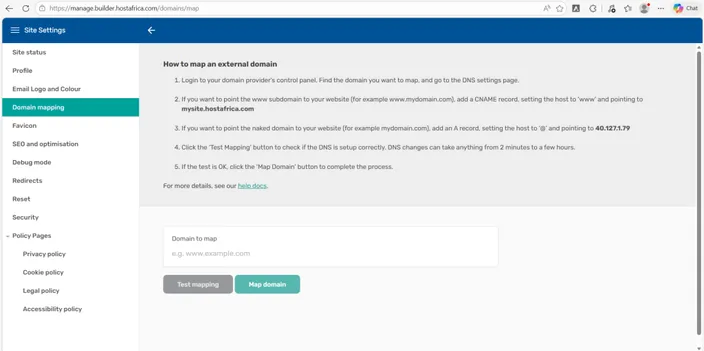
What Do You Need to Connect a Domain to a Website?
Your Website Builder will tell you which DNS records need to be updated and provide the values to use. Two records you'll commonly encounter are:
The A Record
An A Record points a domain or hostname to an IP address.
If your Website Builder provides an A Record value, copy the IP address it gives you and enter it into the appropriate A Record in your DNS settings.
The CNAME Record
A CNAME points one hostname to another hostname.
For example, your provider may use a CNAME to make sure the www version of your domain reaches the correct website.
The important part: don't guess the values. Use the exact connection details provided by your Website Builder and leave unrelated DNS records alone.
How Long Does Domain Connection Take?
After saving your DNS changes, they need time to propagate across the internet.
You may see the change fairly quickly, but DNS updates can sometimes take up to 24 hours or longer to reflect everywhere. So if your domain doesn't connect immediately, don't start changing random domain settings.
Give it some time.
Quick Tip
Once the connection is working, visit a few different pages and check that they all load under your custom domain rather than the generic builder address.
Domain Connection to Website Checklist
Before you begin:
- Open the domain connection instructions in your Website Builder.
- Log into the DNS management area for your domain.
- Find the records your Website Builder asks you to update.
- Copy the supplied values carefully.
- Save your changes.
- Leave unrelated DNS records untouched.
- Allow time for DNS propagation.
- Visit your website and confirm your custom domain works.
That's the process.
It looks much more intimidating in the DNS panel than it actually is.
Did You Buy Your Domain Through HostAfrica?
If your domain registration and Website Builder are both managed through HostAfrica, the connection process may be simpler.
Check your HostAfrica dashboard and the domain connection instructions provided there before manually changing DNS records. If the domain still needs to be connected manually, use the values supplied for your Website Builder setup.
FAQs: Connect Domain to Website
Will changing my DNS settings affect my email?
It can if you change records used for email, such as MX records. Only change the DNS records required for your website connection and leave unrelated records untouched.
What if my domain doesn't work immediately?
Give the DNS changes time to propagate. If the domain still isn't working after the expected propagation period, check the values you entered or contact support.
Do I need to transfer my domain?
Usually not just to connect it to a website. You can normally keep the domain with your existing registrar and point it to your Website Builder. We'll cover mapping versus transferring in the next post.
Do I need to understand every DNS record?
No. Follow the connection instructions provided by your Website Builder and avoid changing records that aren't part of the setup.
Next in this series: Why Your Site Might Show a "Not Secure" Warning After Launch →
Ready to connect your domain? Open your HostAfrica Website Builder connection instructions, gather the DNS values you need, and follow the checklist above. Your custom domain is one of the final steps between your new website and launch.
