DNS propagation is the process of updating DNS records across global DNS servers after a change is made to a domain’s DNS settings. Because DNS data is cached worldwide, changes do not take effect everywhere immediately and can take up to 24–48 hours to fully update.
TL;DR
- DNS propagation is the process of spreading DNS changes across global DNS servers.
- Changes don’t appear instantly because DNS records are cached worldwide.
- Propagation usually takes 24–48 hours, depending on TTL and location.
- Online tools like What’s My DNS help track propagation in real time.
- Most DNS issues resolve on their own, but caching and incorrect settings can cause delays.
DNS propagation meaning in one sentence:
DNS propagation is the process that occurs after you make changes to a domain’s DNS settings, such as updating nameservers or modifying DNS records.
Once a change is made, the updated information needs to be shared and recognised by DNS servers around the world. Because these servers store cached copies of DNS data and refresh them at different intervals, the changes don’t take effect everywhere instantly. This global update process is what’s known as DNS propagation.
In this article, we'll break down what DNS propagation is, why it takes time, how to check the propagation status, and what you need to know when making changes to your domain.
Understanding DNS Propagation
DNS propagation is a mechanism to spread new DNS record information throughout the internet's global network of DNS servers. When you update your DNS settings, that information has to be shared with all the DNS servers around the world. If it doesn’t happen, users may experience errors, downtime, or redirected traffic while accessing your website or other online services.
This can also happen when you implement a domain redirect. Read more about what that is here.
The global DNS servers store a cached version of your domain’s data, and they don’t all update at the same time. Each server updates at different intervals, which is why changes can be visible in one region but not another. This entire process that happens after you make DNS changes is known as˜DNS propagation’. Find out what is a parked domain.
For better understanding, let’s look at a simplified overview of the steps involved:
- You make a DNS change: This could be updating nameservers, switching to a new hosting provider, or editing DNS records (like A, CNAME, or MX records).
- Your DNS records are updated: Your domain’s authoritative DNS server now holds the new information.
- The new information propagates: DNS servers around the world begin updating their caches with the new information.
- Full propagation: Once all the DNS servers have updated their cache, your domain changes are fully recognized everywhere, and the new settings are in place globally.
Why Does DNS Propagation Take Time?
DNS propagation is slow because of the internet's massive scale and the way DNS caching works. Every DNS server around the world keeps a local copy of your domain’s information to speed up future requests.
When you make a change, that cached data has to expire and be replaced with the new information. The speed at which this happens depends on the Time to Live (TTL) settings. These settings control how long the DNS record is kept in cache before it’s refreshed.
However, DNS servers don’t all refresh their caches at the same time. Some servers may update within a few minutes, while others could take hours or even a couple of days to update, which leads to the overall delay in propagation.
Typical Propagation Times
Domain propagation typically takes between 24 to 48 hours, but it can vary depending on the configured TTL values and geographical differences. The lower the TTL, the faster DNS servers will check for updates. Higher TTL values mean the cached information is held longer, delaying propagation.
Similarly, due to geographical differences, a change could take effect in Europe within an hour, while it may take much longer for it to appear in regions like Asia or South America.
How to Check DNS Propagation Status
Once you've made DNS changes, you’ll want to know if the changes have fully propagated across the internet. Luckily, there are several online tools that allow you to do so, in real time, by querying DNS servers from around the world.
Here are some popular DNS propagation checker tools:
- What’s My DNS (whatsmydns.net)
- DNSChecker (dnschecker.org)
- MXToolbox (mxtoolbox.com)
For example, suppose you have transferred a domain to someone else. To check the DNS propagation status using What's My DNS, you can follow these steps (which are largely applicable to the other two tools as well):
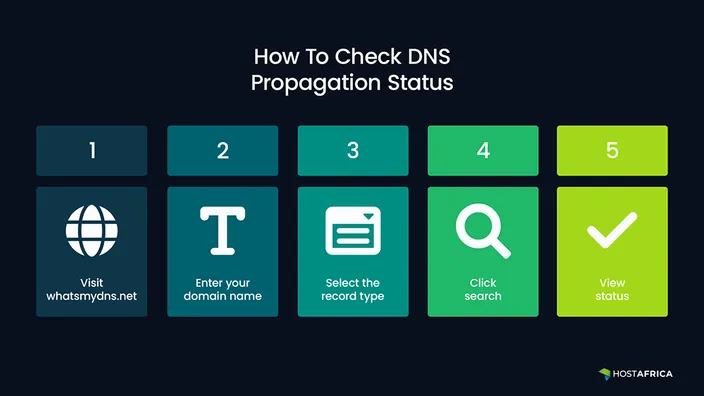
Visit whatsmydns.net
Visit the site: whatsmydns.net
Enter your domain name
In the search bar, type your domain name for which you made DNS changes.
Select the record type
From the dropdown menu, select the type of record you want to check. This could be an A record (points to your IP address), CNAME, MX record (for email), or others depending on what you’ve changed.
Click search
Hit the search button. The tool will now query multiple DNS servers from different locations across the world.
View status
You’ll see a list of global DNS servers, along with their current responses. If the updated DNS record is displayed (along with a green tick), the change has propagated in that location. If you still see old information, or a red cross, propagation hasn't completed there yet.
As you can see in the above screenshot, the change has propagated to several DNS servers in Brazil, Canada, and the United States, but not yet in Mexico.
Common DNS Propagation Issues and How to Fix Them
Sometimes DNS propagation doesn’t go as smoothly as expected, and you may run into issues that prevent your changes from being applied globally. Let’s look at some common issues and how you can resolve them:
DNS caching Issues
One of the most common reasons you may not see your DNS changes immediately is DNS caching. Your browser, ISP, or even your computer may be holding onto an old version of the DNS records. This would make you see outdated information even after propagation has started.
Solutions:
- Go to your browser’s settings and manually clear the cache. This forces your browser to fetch the latest DNS records.
- On your computer, you can flush the DNS cache to ensure that it’s not using outdated records. For Windows, the command is: ipconfig /flushdns and for macOS it’s sudo killall mDNSResponder.
Incorrect DNS Settings
If you’ve mistakenly entered incorrect DNS records, your changes naturally won’t work as intended. For example, you may have pointed to the wrong IP address, or misconfigured the DNS record type.
Solutions:
- Revisit the DNS settings and ensure that the values are correct (e.g., IP address, record types like A, CNAME, MX, etc.).
- If you’re unsure about what values to enter, reach out to your hosting provider or registrar for guidance.
Long TTL (Time to Live) Values
The TTL value determines how long a DNS record is cached before being refreshed. If the TTL is set to a high value (e.g., 24 hours or more), DNS servers may hold on to the old records longer.
Solutions:
- Before making major DNS updates, set the TTL to a low value (like 300 seconds or 5 minutes).
- If you’ve already made changes with a high TTL, there’s no way to force the update—just wait for the TTL to expire.
Slow ISP DNS Updates
Some ISPs don’t update their DNS cache frequently. This means that users connected through those ISPs will not see your DNS changes right away.
Solutions:
- You can suggest that users switch to faster DNS providers like Google DNS or Cloudflare DNS, which tend to update more quickly.
- If switching DNS servers isn’t viable, then unfortunately, you just have to wait for the ISP’s DNS cache to refresh.
Incorrect Nameserver Settings
If you’ve recently changed nameservers, the DNS changes may not propagate correctly if the new nameservers are not set up properly, or if the switch was incomplete.
Solutions:
- Check with your domain registrar to verify that the correct nameservers are in place. If not, update them and wait for the propagation to restart.
- Nameserver updates typically take longer to propagate (up to 48 hours), so be patient.
FAQ
What is DNS propagation?
DNS propagation refers to the time it takes for updated DNS records — such as A, CNAME, MX, or nameserver changes — to be reflected across DNS servers worldwide. This process usually takes 24–48 hours due to DNS caching and Time to Live (TTL) settings.
How long does DNS propagation take?
Most DNS changes propagate within 24 to 48 hours, though some updates may appear sooner or take longer depending on TTL settings and ISP behaviour.
Can DNS propagation be sped up?
You can reduce future delays by lowering TTL values before making changes, but once updates are made, propagation cannot be forced.
Why does my website work in one location but not another?
Different DNS servers update at different times, so users in some regions may still see cached (old) records.
Does DNS propagation cause downtime?
Not usually, but misconfigured DNS records or nameserver changes can temporarily disrupt website or email services.
How can I check if my DNS changes have propagated?
You can use tools like What’s My DNS, DNSChecker, or MXToolbox to see DNS status across global locations.
Do nameserver changes take longer than DNS record changes?
Yes. Nameserver updates often take up to 48 hours and tend to propagate more slowly than individual DNS record edits.
Conclusion
Before you make changes to your DNS settings, it’s important to fully understand what DNS propagation is. Note that even though DNS propagation can take time and may seem complex, the good news is that it's usually a hands-off process. Simply wait for the changes to propagate, and your online services will be up and running smoothly.
Interested in reading more? Explore other DNS related topics on our blog. And if you ever need help with DNS settings or propagation, reach out to our customer support team anytime.
Troubleshoot DNS Changes With Confidence
DNS propagation is easier to manage when you know how to check updates, avoid change-related issues, and understand the DNS records behind your domain. These related guides will help you monitor propagation and make safer DNS changes.
Related articles: