TLDR
A CNAME record lets one domain or subdomain point to another domain name instead of an IP address. It’s commonly used when connecting domains to third-party services, managing multiple domains, or simplifying long service URLs. You can check a CNAME using online DNS lookup tools, command-line utilities like nslookup or dig, or directly from your DNS management panel. If a CNAME isn’t working, common causes include DNS propagation delays, typos, or incorrect record setup.
A CNAME record lets one domain name point to another domain. You may need to check it when linking a domain to a hosting platform or fixing website loading issues. In this guide, you will learn how to check a domain’s CNAME record using both online lookup tools and simple command line methods.
What Is a CNAME Record?’
A CNAME (Canonical Name) record is a type of DNS record that maps one domain name (an alias) to another, *canonical *domain name.
A canonical domain name is the primary or real hostname for a particular web server or service. Visit our domains page to secure a domain for yourself today.
For example, let’s say you have a subdomain like blog.sample.com and you want it to point to myblog.wordpress.com. You can use a CNAME record to achieve this. Here’s how that record will look:
blog.sample.com 3600 IN CNAME myblog.wordpress.com
After defining this record, when you type blog.sample.com into your browser, the DNS server looks at the CNAME record to find that it points to myblog.wordpress.com.
It then does a second lookup to find the IP address of myblog.wordpress.com. Finally, it connects you to myblog.wordpress.com using that IP address.
CNAME vs. A record
CNAME records are useful when the target service may change its IP, while A records are better when you want a static and direct connection.
An A record is the most basic form of DNS records. It points a domain name directly to an IP address.
On the other hand, a CNAME record, like we just saw, points a domain to another domain.
Here’s a quick comparison table that highlights the differences between CNAME and other records.
| Aspect | CNAME | A Record | AAAA Record | MX Record | TXT Record |
| Purpose | Points one domain or subdomain to another domain name. | Maps a domain directly to an IP address | Maps a domain to an IPv6 address | Directs email to mail servers for the domain. | Holds text data, often used for verification or security settings |
| Stands for | Canonical Name | Address Record | IPV6 Address Record | Mail Exchange | Text Record |
| Target value | Another domain name (the canonical name). | An IPv4 address (e.g., 192.168.1.1). | An IPv6 address (e.g., 2001:0db8:85a3:0000:0000:8a2e:0370). | List of mail servers with priority values. | Any text string. |
| Format | alias.sample.com CNAME real.sample.com | sample.com A 192.0.2.1 | sample.com AAAA 2001:db8::1 2001:0db8:85a3:0000:0000:8a2e:0370 | sample.com MX 10 mail.sample.com | sample.com TXT "v=spf1..." |
Why You Might Need to Check a CNAME Record
Here are some common situations where it becomes necessary to check or set up a CNAME record:
- To point a subdomain to a service hosted on another domain. For example, you may want help.yourdomain.com to lead users to a hosted helpdesk platform.
- To handle multiple domains that show the same content by pointing them to one main domain. This makes updates easier since changes are done in one place instead of many.
- To create simple and readable domain names for services that normally use long or complex hostnames. For example, files.sample.com can point to a long and cumbersome cloud service address.
- To connect your domain with third-party tools that require domain verification. Services like Mailchimp or Zendesk often ask for a CNAME record before they can work with your domain.
- To direct traffic to different website versions for A/B testing. For example, versiona.sample.com and versionb.sample.com can point to separate servers.
How to check the CNAME of a domain?
Next, let’s discuss the two ways in which you can check the CNAME of a domain.
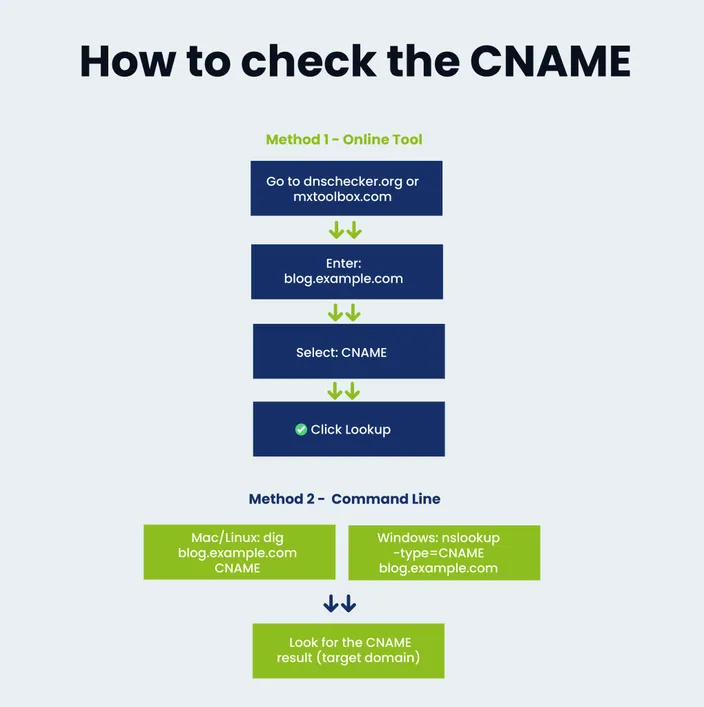
Method 1 – Using an Online DNS Lookup Tool (Beginner-Friendly)
If you’re not very technical, just use a free online DNS lookup tool. Here are the steps:
- Go to any DNS lookup website like: dnschecker.org or mxtoolbox.com.
- Enter your domain or subdomain.
- Select CNAME from the record type dropdown
- Click the Search button.
- You’ll see the current CNAME value, if it exists.
Method 2 – Checking the CNAME via Command Line (Advanced Users)
If you are comfortable using the command line, or are writing a script that needs to check DNS records, the following options will help.
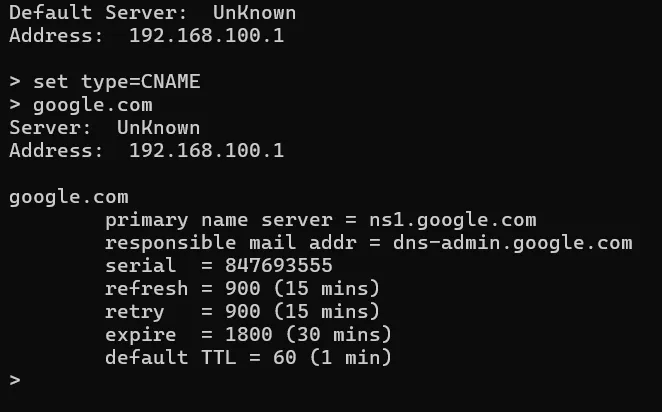
Using nslookup
This method works on both Windows and Linux systems.
- Open Command Prompt on Windows or Terminal on Linux.
- Type nslookup and press Enter.
- Enter the command set type=CNAME and press Enter.
- Type the domain or subdomain you want to check and press Enter.
- If a CNAME record exists, it will be shown in the output.
Using dig
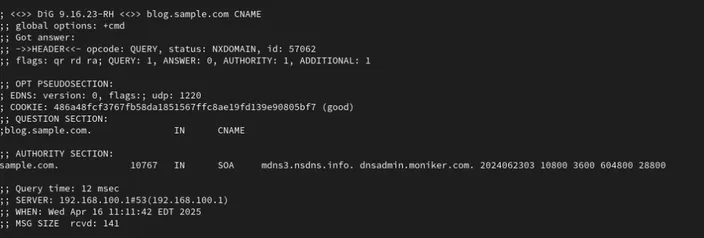
This method is available on Linux systems.
- Open the Terminal.
- Type dig yourdomain.com CNAME and press Enter.
- Look for the ANSWER SECTION in the results.
- The CNAME value will be listed there if one is set.
Method 3 – Checking the CNAME in Your DNS Hosting Panel
You can also check the CNAME record directly from the DNS panel where your domain is managed.
Review the Value or Target field to see which domain it points to.
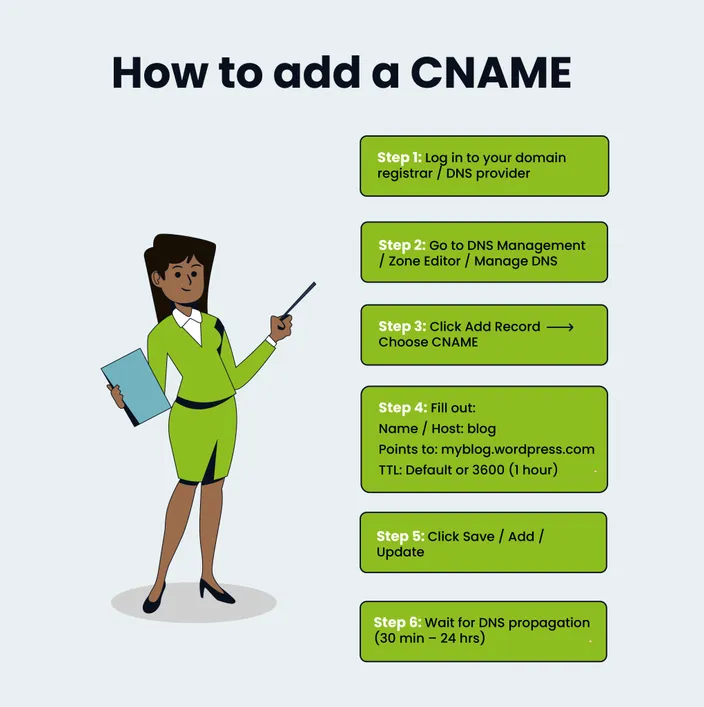
- Log in to your domain registrar or hosting account.
- Open the DNS management section. This may be called DNS Zone, DNS Manager, Zone Editor, or something similar.
- Look through the list of DNS records and find the one with the type set to CNAME.
- Check the Host or Name field to see which subdomain the record applies to.
How to Tell If a CNAME Record Is Set Up Correctly
Here is a checklist to help you determine if a CNAME record is set up correctly:
- The CNAME record points to a valid domain name and not an IP address.
- The target domain resolves properly on its own (e.g., when you open it in a browser)
- The CNAME record is added to the correct subdomain and not the root domain.
- DNS lookup tools show the expected CNAME value without errors.
Conversely, if you notice any of the following, you may have issues:
- The CNAME record does not appear in DNS lookup results, even after enough time has passed.
- The record points to a domain that no longer exists or is misspelled.
- Multiple CNAME records are set on the same subdomain.
- The service you are connecting to reports a domain verification failure.
If you face any issues during or after the process, check out this guide on troubleshooting website issues for advice on how to debug.
How to Avoid Common CNAME Problems
Next, let’s go over some common mistakes people tend to make while working with CNAMEs:
- Using a CNAME on the root domain: Most DNS providers do not allow CNAME records on the main domain. Defining one can break your website or email setup.
- Pointing a CNAME to an IP address: A CNAME must always point to another domain name. If you use an IP address, the record will not work.
- Creating multiple CNAME records for the same subdomain: Only one CNAME can exist per subdomain. Adding more than one will lead to conflicts and unpredictable results.
- Misspelling the target domain: A small typo can cause the subdomain to fail to resolve.
- Not allowing time for DNS propagation: Changes may not show up right away. Checking too soon can make it seem like the record is broken when it is still updating.
How Long Does It Take for CNAME Changes to Work?
CNAME changes, or any DNS changes for that matter, can take anywhere from a few minutes to many hours to fully take effect. In most cases, you should start seeing the changes within 30 minutes, but it can sometimes take up to 24–48 hours depending on different factors.
One of the key factors is the TTL (Time to Live) value. TTL tells DNS servers how long to cache the current DNS record before checking for an update.
- A lower TTL (like 300 seconds or 5 minutes) means that changes will be reflected faster.
- A higher TTL (like 86400 seconds or 24 hours) means that changes may take longer to show up.
Frequently Asked Questions
Before we wrap up, here are a few FAQs about CNAME records:
What does a CNAME record do?
A CNAME record points one domain or subdomain to another domain name.
Can a CNAME point to an IP address?
No, a CNAME must always point to another domain name. If you need to point to an IP address, you should use an A record.
Can I have multiple CNAME records?
You can have CNAME records on different subdomains. You cannot have more than one CNAME on the same subdomain.
What’s the difference between CNAME and A records?
A CNAME points to another domain name, while an A record points directly to an IP address.
Why isn’t my CNAME working yet?
DNS changes take time to update across the internet, so the record may still be propagating.
How do I remove or change a CNAME record?
Log in to your DNS hosting panel, find the CNAME record, then delete it or edit its value and save the changes.
Conclusion
In this guide, we covered everything you need to know about CNAME: what it is, how it works, when to use it, and how to check it. We hope that it's helped you understand CNAME records better and made things a bit less confusing.
Learn More About DNS Checks and Records
CNAME records are an important part of connecting domains, subdomains, and services correctly. These related guides will help you set up DNS records, check propagation, understand DNS timelines, follow best practices, and avoid common DNS change issues.
Related articles: