TL;DR: OpenClaw Documentation
- OpenClaw is a self-hosted AI assistant platform that connects multiple AI models to messaging apps like WhatsApp, Telegram, Discord, and Slack.
- You retain full control over data, security, and infrastructure by running OpenClaw on your own server.
- Deployment is fully automated on HostAfrica, including SSL, domain setup, and service configuration.
- OpenClaw supports OpenAI and Anthropic models, with optional AI-free automation use cases.
- Security is enforced through HTTPS-only access, service isolation, and token-based authentication.
- Setup takes minutes, with no manual server configuration required.
OpenClaw is a self-hosted AI assistant platform that connects multiple AI models (OpenAI, Anthropic Claude) to messaging platforms like WhatsApp, Telegram, Discord, and Slack. Deploy your own AI assistant with automatic SSL, isolated security, and full control over your data.
Product Overview
What is OpenClaw?
OpenClaw enables you to run a personal AI assistant on your own infrastructure. Connect your preferred AI model and interact across multiple messaging channels - all while maintaining complete control and privacy.
Key Features:
- Multiple AI Providers: Choose from OpenAI GPT-4 and Anthropic Claude
- Multi-Channel Support: WhatsApp, Telegram, Discord, Slack, and more
- Self-Hosted: Your data stays on your server
- Automatic SSL: Let's Encrypt certificates managed automatically
- Optional AI: Deploy without an API key for non-AI automation use cases
Use Cases:
- Personal AI assistant accessible via WhatsApp
- Team automation across Slack/Discord
- Multi-channel chatbot with your own AI backend
- Workflow automation without relying on third-party AI services
Implementation on HostAfrica
Deployment Method:
OpenClaw is deployed via our automated provisioning system:
- Template-Based: Pre-configured Ubuntu 24.04 template with OpenClaw pre-installed
- CloudInit Automation: Fully automated setup based on your configuration
- Zero Manual Setup: Domain, SSL, and services configured automatically
Infrastructure Requirements:
- OS: Ubuntu 24.04 LTS
- RAM: Minimum 2GB (recommended for stable operation)
- CPU: 2 vCPU minimum
- Storage: 20GB minimum
- Network: Public IPv4 address with domain
Included Components:
- OpenClaw Gateway (latest version, auto-updated on deployment)
- Caddy web server (automatic SSL/HTTPS)
- Node.js 22 runtime
- Pre-enabled messaging plugins (WhatsApp, Telegram, Discord, Slack)
Architecture
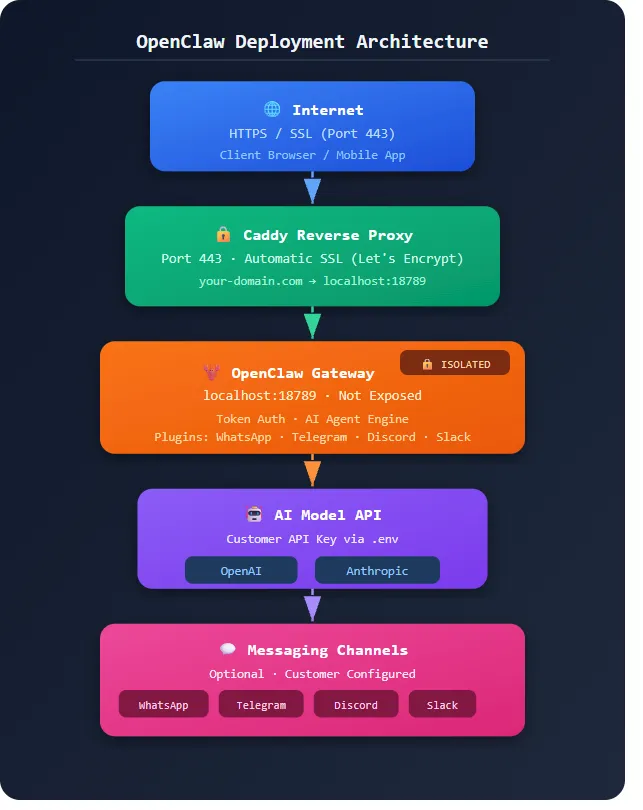
Security Architecture:
- Caddy handles all external traffic on port 443 (HTTPS only)
- OpenClaw Gateway bound to localhost only (not internet-accessible)
- All communication encrypted via SSL/TLS
- Gateway token required for dashboard access
Security Features
Automatic SSL Certificates
- Let's Encrypt certificates obtained automatically by Caddy
- Auto-renewal before expiration
- HTTPS enforced for all connections
Service Isolation
- OpenClaw Gateway bound to
127.0.0.1(localhost only) - Only Caddy exposed to internet
- Reverse proxy architecture prevents direct gateway access
Authentication
- Gateway token required for dashboard access
- Token auto-generated on deployment (unique per instance)
- Configurable channel-level access control (allowlists, pairing codes)
Data Privacy
- Self-hosted - all data stays on your server
- No third-party analytics or tracking
- API keys stored securely in environment files
Getting Started
Setup Time: 3-5 minutes for automatic provisioning
What You'll Receive:
After deployment, you'll get:
- Access URL:
https://your-domain.hcloud.app/#token=your-gateway-token - Gateway Token: Required for dashboard login
- SSH Access: Full root access to your server
- Deployment Info: Located at
/root/.openclaw-deployment-info
Minimum Requirements:
- Valid domain name (provided by HostAfrica)
- (Optional) AI API key from OpenAI or Anthropic
- (Optional) WhatsApp number for messaging integration
Accessing Your OpenClaw Dashboard
Login:
- Navigate to your access URL:
https://your-domain.hcloud.appYou may see a disconnection error no need to worry. That happens because you have not added your gateway token yet. Please click on Overview to add it - Enter your Gateway Token
- Click "Connect" or paste token in URL:
https://your-domain.hcloud.app/#token=YOUR_TOKEN
Finding Your Gateway Token:
SSH into your server and run:
cat /root/.openclaw-deployment-info
Or check client area service details where token is displayed after deployment.
First Login:
- Dashboard loads showing Overview, Chat, Channels, and Settings
- If no API key configured, Chat won't work until you add one
- All other features (WhatsApp linking, channel management) available immediately
Configuration
Changing the Domain Name
If you need to change your domain after deployment:
# SSH into server ssh root@your-current-domain.hcloud.app # Edit Caddy configuration nano /etc/caddy/Caddyfile # Change domain (replace your-new-domain.hcloud.app) your-new-domain.hcloud.app { reverse_proxy localhost:18789 } # Save and restart Caddy systemctl restart caddy
SSL certificate for new domain will be obtained automatically.
How to Add an API Key
If you deployed without an API key or want to change providers:
# SSH into server ssh root@your-domain.hcloud.app # Edit environment file nano /root/.openclaw/.env # Add your API key (choose one): OPENAI_API_KEY=sk-proj-your-key-here # OR ANTHROPIC_API_KEY=sk-ant-your-key-here # Save file (Ctrl+X, Y, Enter) # Restart OpenClaw systemctl restart openclaw-gateway # Verify it's running systemctl status openclaw-gateway
Getting API Keys:
- OpenAI: OpenAI Platform (requires paid account with credits)
- Anthropic: Claude Developer Platform (requires paid account)
How to Link WhatsApp
Requirements:
- WhatsApp account (separate number recommended, not your personal phone)
- eSIM or spare phone recommended for best experience
Steps:
# SSH into server ssh root@your-domain.hcloud.app # Start WhatsApp linking openclaw channels login # Scan QR code with WhatsApp app # Go to: WhatsApp → Settings → Linked Devices → Link a Device # After successful scan, credentials saved automatically
Note: If you see error 515 after linking, run:
# Restart gateway systemctl restart openclaw-gateway
WhatsApp should now show as "Connected" in the Channels section of your dashboard.
Server Information
View Deployment Information
cat /root/.openclaw-deployment-info
Example Output:
OpenClaw AI Assistant Deployment ================================= Access URL: https://yourdomain-openclaw.hcloud.app/#token=6838fedb... Domain: yourdomain-openclaw.hcloud.app Gateway Token: 6838fedb041b8232a2c57931174551d3b2152b17d30b807d Provider: openai Model: openai/gpt-4o API Key Status: Not configured WhatsApp: Not configured To add/update API key: 1. SSH: ssh root@yourdomain-openclaw.hcloud.app 2. Edit: nano /root/.openclaw/.env 3. Add: OPENAI_API_KEY=sk-... or ANTHROPIC_API_KEY=sk-ant-... 4. Restart: systemctl restart openclaw-gateway To link WhatsApp: 1. SSH: ssh root@vm345wmju-openclaw.hcloud.app 2. Run: openclaw channels login 3. Scan QR code with WhatsApp app =================================
Useful Commands
Service Management
# Check OpenClaw status systemctl status openclaw-gateway # Start OpenClaw systemctl start openclaw-gateway # Stop OpenClaw systemctl stop openclaw-gateway # Restart OpenClaw (after config changes) systemctl restart openclaw-gateway # View OpenClaw logs journalctl -u openclaw-gateway -n 50 # Follow logs in real-time journalctl -u openclaw-gateway -f
Caddy (Web Server)
# Check Caddy status systemctl status caddy # Restart Caddy (after domain changes) systemctl restart caddy # View Caddy logs journalctl -u caddy -n 50
Configuration Files
# View OpenClaw config cat /root/.openclaw/openclaw.json # View API keys cat /root/.openclaw/.env # View Caddy config cat /etc/caddy/Caddyfile # View deployment logs cat /var/log/openclaw-deploy.log
Troubleshooting
# Check if OpenClaw is running ps aux | grep openclaw # Check if port 18789 is listening ss -tulpn | grep 18789 # Check OpenClaw version openclaw --version # Check system resources free -h df -h
Updates
Major Updates (New OpenClaw Versions)
OpenClaw is automatically updated to the latest version on deployment. For manual updates:
# Update OpenClaw to latest npm update -g openclaw # Restart gateway systemctl restart openclaw-gateway # Verify new version openclaw --version
System Updates
# Update Ubuntu packages apt update && apt upgrade -y # Reboot if kernel updated reboot
Official Documentation
For detailed information, refer to the official OpenClaw documentation:
Main Documentation: OpenClaw - OpenClaw