WhatsApp isn't just a messaging app in Africa. It's the default operating system for business communication.
Your customers use it to ask about stock availability at 9 pm. They send voice notes instead of filling out contact forms. They expect a reply before they've even locked their phone. When that reply doesn't come fast enough, they move on to whoever messages them back first.
That's the problem a WhatsApp AI chatbot solves, and why so many developers, agencies, and technical founders are building one right now.
The good news: you no longer need months of custom development to get there. With n8n, the WhatsApp Business API, OpenAI, and a Linux VPS, you can build a production-ready chatbot for WhatsApp that handles real conversations, connects to your business systems, and runs 24/7 on infrastructure you own.
This guide walks you through the entire process from setting up the WhatsApp Business API to deploying n8n on HostAfrica and wiring up the AI workflow that makes it all work. Follow along to allow your customers to connect to your chatbot.
Key Takeaways: How to Build a WhatsApp AI Chatbot With n8n
- A WhatsApp AI chatbot is an automated system that receives customer messages through WhatsApp, processes them with an AI model, and sends intelligent replies back through the WhatsApp Business API.
- You can build a WhatsApp AI chatbot using n8n, the Meta WhatsApp Business API, OpenAI, and a Linux VPS, with n8n handling the workflow between incoming messages, AI processing, memory, and outgoing replies.
- A production-ready chatbot should include conversation memory, business-specific knowledge, human handover, monitoring, and support for common customer message types.
- Self-hosting the workflow gives businesses more control over their data, infrastructure, integrations, and costs than relying entirely on a proprietary chatbot platform.
- The chatbot can be extended beyond FAQs to handle lead qualification, order queries, appointment booking, voice notes, images, PDFs, CRM integrations, and escalation to human agents.
- For South African deployments, hosting n8n on local infrastructure can help reduce latency while providing a persistent environment for a chatbot that needs to operate continuously.
Why WhatsApp Is the Right Channel for Business Automation
Before we get into the setup, it's worth understanding why WhatsApp is worth building on in the first place.
South Africa alone has between 24 and 29 million active WhatsApp users. Across the continent, it consistently ranks as the most-used messaging app, often by a wide margin. In markets like Nigeria, Kenya, and Ghana, WhatsApp is how businesses communicate with customers, suppliers, and staff.
This matters for automation for three reasons.
Familiarity - Your customers already know how to use WhatsApp. There's no app to download, no account to create, no new interface to learn. You meet them where they already are.
Engagement - WhatsApp messages consistently see open rates that dwarf email. When someone receives a WhatsApp message, they open it. That same dynamic applies to your chatbot - customers will actually interact with it.
Reach - An AI chatbot on WhatsApp doesn't replace your team. It handles the volume they can't. Hundreds of conversations running simultaneously, at any hour, without a drop in response time.
The use cases are wide-ranging: answering FAQs, qualifying leads, booking appointments, sending order updates, routing complex queries to human agents. All of these can be automated through a well-built WhatsApp business chatbot without touching proprietary SaaS platforms that lock you into their pricing and their data policies.
What You'll Build
By the end of this tutorial, you'll have a fully functional AI chatbot for WhatsApp that:
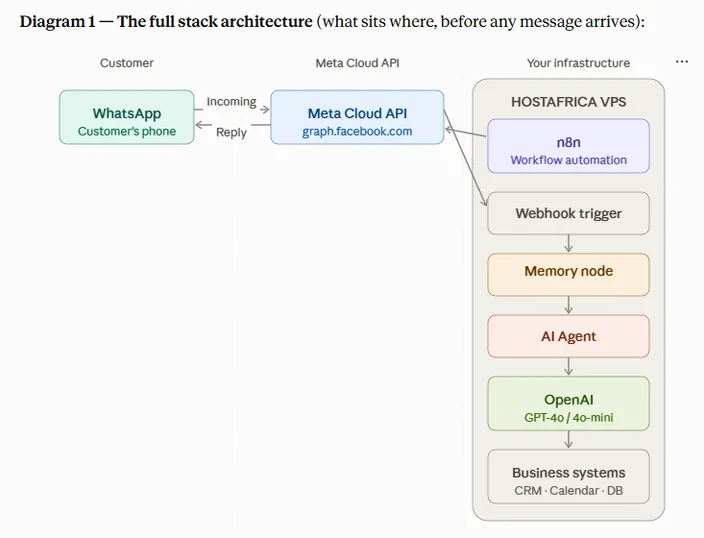
- Receives incoming WhatsApp messages via the Meta Cloud API
- Routes them through an n8n workflow
- Sends each message to OpenAI for intelligent response generation
- Returns the AI-generated reply to the customer's WhatsApp
- Retains conversation context across multiple messages using a memory node
- Handles FAQs and common business queries using contextual knowledge you provide
- Escalates conversations to a human agent when needed
- Can be extended to handle voice notes, images, and PDFs
- Can be extended to book appointments, check availability, and connect to a CRM
The entire stack runs on infrastructure you control. Your workflows, your data, your server.
Prerequisites
Before you start, make sure you have the following ready.
WhatsApp Business Account. You need a verified Meta Business account to access the WhatsApp Business API. If you haven't set one up, head to business.facebook.com and complete the verification process.
Meta Developer Account. This is where you'll create the app that connects to the WhatsApp Cloud API. Sign up at developers.facebook.com.
OpenAI API Key. You'll need this to connect n8n to GPT-4o or whichever model you choose. Get one at platform.openai.com.
HostAfrica n8n App Hosting or Linux VPS. This is where n8n runs. HostAfrica offers a pre-configured n8n App Hosting option that gets you live without any manual server setup. Alternatively, you can use a Linux VPS if you want full control over the environment.
Basic workflow familiarity. You don't need to be a developer, but understanding concepts like webhooks, API keys, and JSON will help. If n8n is completely new to you, it's worth spending 30 minutes with the n8n documentation before diving into this tutorial, particularly the Advanced AI section, which covers how n8n handles AI-powered workflows.
Business documentation (optional but recommended). FAQs, pricing guides, product catalogues, or any internal documentation you want the chatbot to reference when answering questions.
Step 1: Deploy n8n on HostAfrica
The fastest way to get n8n running is through HostAfrica's n8n App Hosting. It deploys a pre-configured n8n instance in Docker, with SSL already handled so you skip all the manual server configuration and get straight to building.
If you prefer a hands-on setup, a Linux VPS gives you full root access to configure everything yourself. Either route works; the VPS just requires more setup time.
Deploying with HostAfrica n8n App Hosting
- Log in to your HostAfrica account and navigate to Application Hosting → Self-Hosted n8n.
- Choose your plan based on expected workflow volume. For most starting projects, the entry-level option is more than sufficient.
- Select your server region. For South African businesses serving local customers, the Johannesburg region reduces latency.
- Complete the order. Your n8n instance will be live within minutes, accessible at a URL like https://your-instance.hostafrica.app.
Deploying on a Linux VPS
If you're using a Linux VPS instead, here's the quickest path to a running n8n instance:
# Install Docker

curl -fsSL https://get.docker.com | sh

# Run n8n with persistent storage

docker run -d \

  --restart always \

  -p 5678:5678 \

  -e N8N_HOST=your-domain.com \

  -e N8N_PROTOCOL=https \

  -e WEBHOOK_URL=https://your-domain.com/ \

  -v ~/.n8n:/home/node/.n8n \

  --name n8n \

  n8nio/n8n
You'll also need to configure a reverse proxy (Nginx works well) and an SSL certificate via Let's Encrypt. HostAfrica's Managed VPS Hosting handles this for you if you'd rather not manage it manually. For a full breakdown of self-hosting options and environment variables, refer to the n8n hosting documentation.
Production tip: n8n uses SQLite by default, which works fine for getting started. For a production chatbot handling real customer volume, switch to PostgreSQL and enable Queue Mode. SQLite can become a bottleneck under concurrent executions, and Queue Mode ensures messages are processed reliably even during traffic spikes. The n8n docs cover both configurations.
Securing Your Instance
Regardless of which deployment method you use:
- Set a strong password for the n8n admin account on first login
- Enable two-factor authentication
- Keep n8n updated; new releases ship regularly and often include security fixes
- Store all API credentials inside n8n's built-in credentials manager, not hardcoded in workflows
Once your instance is live and secured, move on to the WhatsApp setup.
Step 2: Connect the WhatsApp Business API
The WhatsApp Business API, officially called the Meta Cloud API, is what allows your n8n workflow to send and receive WhatsApp messages programmatically. Meta's official Cloud API documentation is the definitive reference throughout this step, and it's worth bookmarking for anything beyond what this guide covers. Here's how to get set up.
Create a Meta App
- Go to developers.facebook.com and click My Apps → Create App.
- Select Business as the app type.
- Give your app a name and connect it to your verified Meta Business account.
- On the next screen, find WhatsApp and click Set Up.
Note: Meta has a detailed Get Started guide that walks through each of these steps with screenshots if you get stuck at any point.
Add a Phone Number
Under WhatsApp → API Setup, you'll see a test phone number that Meta provides for development. This is useful for testing your chatbot before going live.
For production, click Add Phone Number and follow the verification steps to connect your actual business number. Note that a phone number can only be registered to one WhatsApp Business account at a time. If it's currently active on the regular WhatsApp app, you'll need to deregister it first.
Get Your API Credentials
You need three things from the Meta developer dashboard:
- Phone Number ID - found under WhatsApp → API Setup
- WhatsApp Business Account ID - found in your Business Settings
- Access Token - generated in the API Setup panel
Important: The default token shown in the API Setup panel is a temporary token that expires after 24 hours. For a production chatbot, you need a permanent System User token. Generate this by going to Meta Business Settings → System Users → Create System User, assign it the whatsapp_business_messaging permission, and generate a token that never expires. Using the temporary token is the most common reason new chatbots mysteriously stop working the day after setup.
Save these. You'll enter them into n8n in the next step.
Configure Your Webhook
The webhook is what tells Meta where to send incoming messages. You'll create this in n8n first, then register it with Meta. Meta's webhook documentation covers the full list of subscribable fields and payload structures. It’s quite useful once you want to handle media messages, read receipts, and delivery status events beyond basic text.
In n8n:
- Create a new workflow
- Add a Webhook trigger node
- Set the HTTP Method to POST
- Copy the webhook URL that n8n generates
Back in the Meta developer dashboard:
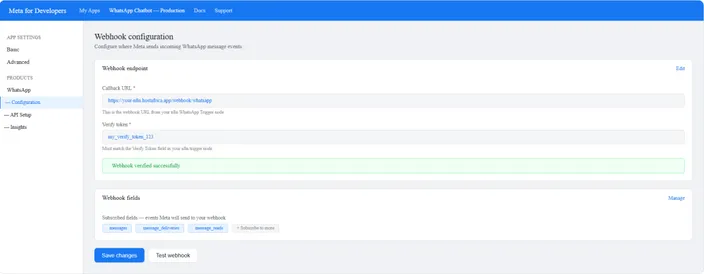
- Go to WhatsApp → Configuration → Webhooks
- Click Edit and paste in your n8n webhook URL
- Set a Verify Token - this can be any string you choose, but note it down
- Under Webhook Fields, subscribe to messages
- Click Verify and Save
Meta will send a GET request to your webhook URL to verify it. You'll need to handle this verification in n8n, which we'll cover in the workflow section.
Meta Developer webhook
Step 3: Build the AI Workflow in n8n
Now for the part that makes everything work. Here's the complete workflow you're building:
n8n workflow canvas full 7-node workflow
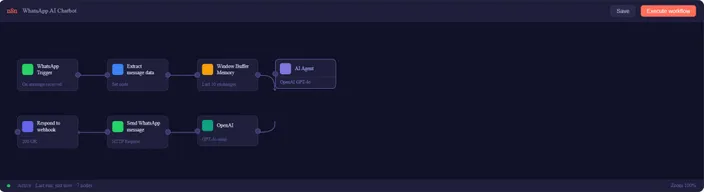
Build each node in the order below. By the end of this step, your canvas should match the layout above exactly.
| TWO APPROACHES: NATIVE NODES VS RAW WEBHOOKS n8n now has a native WhatsApp Trigger node that handles credential setup and webhook verification automatically. This is the recommended approach and what this guide uses. If you're following an older tutorial that uses a generic Webhook node and HTTP Request nodes, the logic is identical; only the configuration differs. |
3a Add the WhatsApp Trigger node
This is the entry point. Every incoming message hits this node first. Add a new workflow, then drop in a WhatsApp Trigger node from the node panel.
n8n WhatsApp Trigger node configuration panel
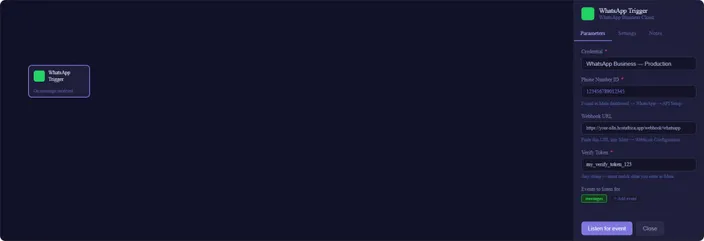
| VERIFY TOKEN MUST MATCH EXACTLY The Verify Token you set in n8n and the one you enter in the Meta developer dashboard must be identical, character for character. A mismatch means Meta can't verify your webhook and will refuse to send messages. Copy it rather than typing it twice. |
Once the trigger node is saved, copy the webhook URL and paste it into your Meta app under WhatsApp → Configuration → Webhooks. Meta will fire a GET request to verify it; n8n handles this automatically with the native trigger node.
| CHECKPOINT Your canvas should have one node. The trigger node status should show "Listening". ● WhatsApp Trigger |
3b Extract the message data
Meta delivers messages as a deeply nested JSON payload. Before passing anything to OpenAI, you need to extract the three fields you'll use for the rest of the workflow.
Add a Set node and connect it to the trigger. Configure three fields:
// Field 1: the message textmessage     = {{ $json.entry[0].changes[0].value.messages[0].text.body }}

// Field 2: the sender's phone number (becomes the memory session ID)from        = {{ $json.entry[0].changes[0].value.messages[0].from }}

// Field 3: your phone number ID (needed when sending the reply)phone_number_id = {{ $json.entry[0].changes[0].value.metadata.phone_number_id }}| USE THE EXPRESSION EDITOR TO VERIFY In the Set node, click the ≡ icon next to any field and switch to Expression view. You can paste in the expression and see the resolved value from your last test message. This confirms you're pulling from the right path in the payload before wiring anything else up. |
| CHECKPOINT Two nodes, connected. Send a test message; the Set node output should show your extracted fields. ● WhatsApp Trigger ● Extract message |
3c Add conversation memory
This is the step most tutorials skip, and it's why so many chatbots feel frustratingly robotic. Without a memory node, every incoming message is treated as a brand new conversation. The customer asks "What are your delivery fees?" and the bot answers. They follow up with "And what about international orders?" and the bot has no idea what "And" refers to.
| WHY THIS NODE MAKES OR BREAKS THE EXPERIENCE The Window Buffer Memory node stores the last N message pairs per user, keyed by their phone number. When the AI Agent processes the next message, it receives the full conversation history, not just the latest message. This is what makes follow-up questions, context references, and multi-step conversations work naturally. |
n8n Window Buffer Memory node configuration panel
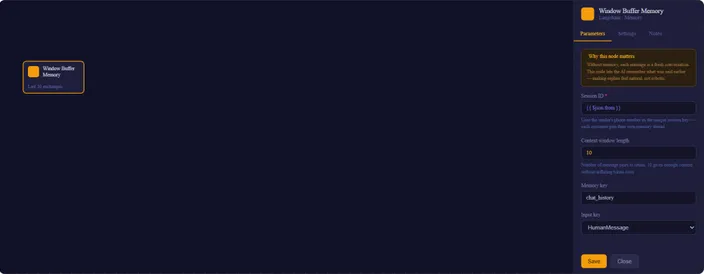
Configure the two critical fields:
Session ID         = {{ $json.from }}                      (the sender's phone number - gives each customer their own thread)

Context window length  = 10                      (retain last 10 message pairs)

Memory key         = chat_history
DON'T SKIP THE SESSION ID FIELD If you leave Session ID as the default (a fixed string), every customer who messages your chatbot will share one conversation thread. Customer A's order history will appear in Customer B's session. Always set it to {{ $json.from }} - the sender's phone number so each customer is isolated. |
| CHECKPOINT Three nodes connected. Memory node should be wired between Extract message and AI Agent. ● WhatsApp Trigger ● Extract message ● Window Buffer Memory |
3d Configure the AI Agent node
The AI Agent node is the brain of the workflow. It receives the customer's message, pulls in the conversation history from the memory node, applies your system prompt, and passes everything to OpenAI to generate a reply.
n8n AI Agent node configuration panel
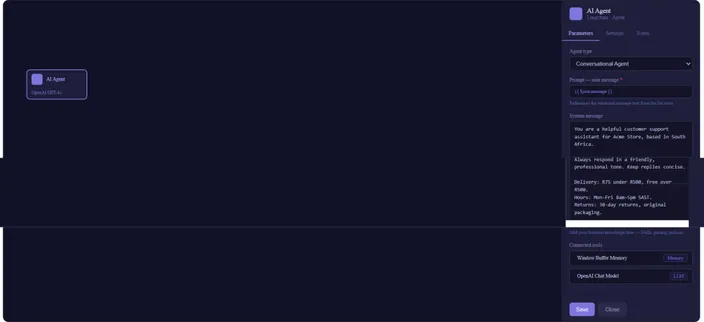
Key fields to configure:
Agent type = Conversational Agent
User message  = {{ $json.message }}             (references extracted message text from the Set node)

System message:  You are a helpful customer support assistant for [Your Business],  based in South Africa.  Delivery: R75 under R500, free over R500.  Hours: Mon–Fri 8 am–5 pm SAST.  Returns: 30-day policy, original packaging.

Connected tools: - Window Buffer Memory (Memory) - OpenAI Chat Model (LLM)| WRITE THE SYSTEM PROMPT FOR YOUR ACTUAL BUSINESS The system prompt is where your chatbot gets its personality and knowledge. Be specific: include your actual prices, actual hours, actual return policy. A generic prompt produces generic answers. Start with your top 10 most common customer questions and make sure the prompt answers all of them. |
3e Connect the OpenAI node
The OpenAI node is a sub-node of the AI Agent; it provides the actual language model. Connect it to the AI Agent as the "Chat Model" input.
n8n OpenAI node configuration panel
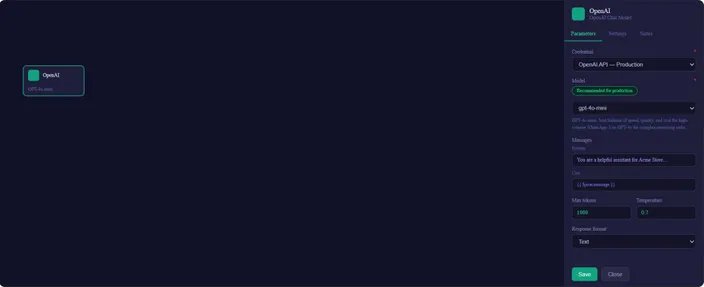
Credential  = OpenAI API (from n8n credentials manager)
Model       = gpt-4o-mini               (recommended: best balance of speed, quality, and cost)
Max tokens  = 1000
Temperature = 0.7
Response format = Text| USE A PERMANENT API KEY, NOT A PROJECT KEY Generate your OpenAI API key under API keys in the OpenAI dashboard, not under a specific project. Project keys have scope restrictions that can cause silent failures in n8n.Store it in n8n's credentials manager; never paste it directly into a node field. |
| CHECKPOINT Five nodes. Send a test message; you should see a response generated in the AI Agent output panel. ● WhatsApp Trigger ● Extract message ● Window Buffer Memory ● AI Agent ● OpenAI |
3f Send the reply
The AI Agent has generated a response. Now you need to send it back to the customer via the Meta Cloud API. Add an HTTP Request node with the following configuration:
Method: POST
URL: https://graph.facebook.com/v19.0/{{ $json.phone_number_id }}/messages

Headers:
    Authorization:  Bearer YOUR_PERMANENT_ACCESS_TOKEN
    Content-Type:   application/json

Body:
 {
   "messaging_product": "whatsapp",
   "to":            "{{ $json.from }}",
   "type":          "text",
   "text": { "body": "{{ $node['AI Agent'].json.output }}"
   }
}| NEVER USE THE TEMPORARY ACCESS TOKEN IN PRODUCTION The default token shown in Meta's API Setup panel expires after 24 hours. Your chatbot will silently stop sending replies the morning after you set it up. You must generate a permanent System User token: Meta Business Settings → System Users → Create System User → assign whatsapp_business_messaging permission → generate a never-expiring token. This is the single most common reason new chatbots stop working. |
Finally, add a Respond to Webhook node at the end of the workflow returning a 200 status. Without this, Meta interprets silence as a failure and retries the webhook, flooding your workflow with duplicate executions.
| CHECKPOINT All seven nodes connected. Send a test WhatsApp message; you should receive an AI-generated reply on your phone within a few seconds. ● WhatsApp Trigger ● Extract message ● Window Buffer Memory ● AI Agent ● OpenAI ● Send message ● Respond to webhook |
Verify it's working: the execution log.
After sending a test message, open the Executions panel in n8n. Every run is logged here; you can see the status of each node, the data that passed through it, and exactly where a failure occurred if something went wrong.
n8n Execution log showing a successful test run
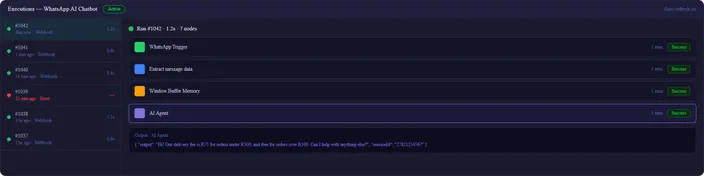
| CLICK ANY NODE ROW TO INSPECT ITS DATA In the execution log, clicking a node row shows exactly what data entered and exited that node during that run. This is how you debug unexpected replies: check what the AI Agent received, not just what it sent back. If the memory node isn't passing history correctly, you'll see it immediately in the input data panel. |
| STEP 3 COMPLETE You now have a fully functional AI chatbot receiving WhatsApp messages, maintaining conversation context, generating intelligent replies with OpenAI, and sending them back to your customer, all running on infrastructure you own. Move on to Step 4 to give it real business knowledge. |
Step 4: Give Your Chatbot Business Knowledge
A chatbot that can only answer generic questions isn't particularly useful. The real value comes when it can answer questions about your business - your pricing, your products, your policies.
There are two practical ways to do this in n8n.
System Prompt Injection
The simplest approach is to paste your business information directly into the OpenAI system prompt. This works well for knowledge bases under a few thousand words.
In the OpenAI node's System Message field:
You are a helpful customer support assistant for [Your Business Name], a [describe your business] based in South Africa.
Always respond in a friendly, professional tone. Keep responses concise.
Here is our business information:
- Delivery fees: R75 for orders under R500, free for orders over R500
- Operating hours: Monday to Friday, 8 am to 5 pm SAST
- Returns policy: 30-day returns on all items in original packaging
- Contact: support@yourbusiness.co.za
If a customer asks about something not covered in this information, let them know you'll connect them with a team member who can help.
Document-Based Knowledge (RAG)
For larger knowledge bases, product catalogues, technical documentation, and detailed FAQs, you'll want to use Retrieval-Augmented Generation (RAG). This approach stores your documents in a vector database and retrieves only the relevant sections before sending them to OpenAI. n8n's Advanced AI documentation covers the LangChain-based nodes that make this possible, including vector store integrations and document loaders.
In n8n, you can implement this using:
- A Supabase or Pinecone node to store and query your vector database
- A text chunking step to break large documents into searchable segments
- A retrieval step that fetches the most relevant chunks based on the customer's question
- An OpenAI node that receives both the question and the retrieved context
This approach scales much better than system prompt injection and produces more accurate, source-grounded answers. It's the right choice for businesses with extensive product ranges or complex support workflows.
Step 5: Handle Voice Notes, Images, and PDFs
Text messages are the simple case. But your customers send more than text; they send voice notes describing their problem, photos of products they're asking about, PDFs of invoices they need help with.
A production WhatsApp chatbot needs to handle all of these gracefully. Here's how to approach each one.
THESE ARE IMPLEMENTATION OUTLINES, NOT COMPLETE STEPS
The points below describe the logic for each format, but each one requires additional nodes, credentials, and configuration to work end to end. Audio transcription alone involves downloading the media file, authenticating with WhatsApp's media endpoint, calling Whisper, and passing the transcript downstream. Treat each bullet as a starting point, not a checklist item you can tick off in one node.
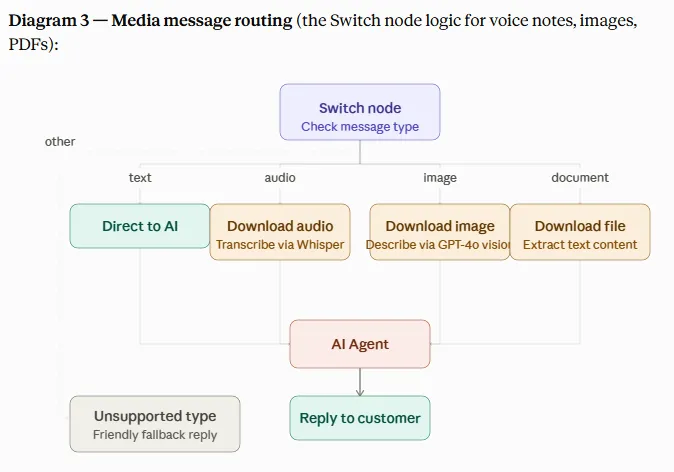
Route by Message Type
Add a Switch node after your trigger to check the incoming message type:
{{ $json.entry[0].changes[0].value.messages[0].type }}
- this returns text, audio, image, document, or other types
Route each to a different branch:
Text → Extract the body and pass directly to your AI Agent.
Audio (voice notes) → Download the media file using an HTTP Request node with your WhatsApp access token, then pass the audio to OpenAI's Whisper transcription model to convert it to text, then pass the transcript to your AI Agent. Your customers can send voice notes and receive a text reply - no friction on their end.
Image → Download the image, pass it to OpenAI's vision-capable model (gpt-4o supports image input) with a prompt asking it to describe what it sees and respond helpfully.
PDF/Document → Download the file, extract the text content using n8n's Extract from File node, then pass the text to your AI Agent.
Unsupported types → Reply with a friendly message: "I can handle text messages, voice notes, images, and PDFs. Could you resend your question in one of those formats?"
This routing pattern is exactly what the n8n community template for AI-powered WhatsApp chatbots implements, and it's what separates a basic chatbot from one that feels genuinely useful in the real world.
Step 6: Add Human Handover
Not every conversation should be handled by the chatbot. Complaints, refund requests, complex technical questions, and high-value sales enquiries all benefit from human attention.
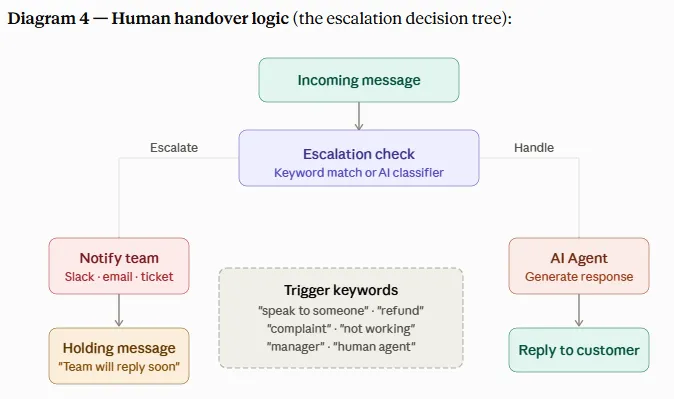
The key is detecting when to hand over and doing it gracefully.
Trigger-Based Escalation
Add an IF node after the message extraction step. Check the incoming message for phrases that signal the customer wants human help:
Contains any of:
- "speak to someone"
- "talk to a person"
- "human agent"
- "manager"
- "refund"
- "complaint"
- "not working"
If any of these are detected, skip the OpenAI node and route directly to a notification workflow instead.
Notification Options
When escalation is triggered, n8n can:
- Send a Slack message to your support channel with the customer's number and conversation summary
- Create a ticket in your helpdesk system (Freshdesk, Zendesk, and similar all have n8n nodes)
- Send an email to the support team
- Log the conversation to a Google Sheet for manual follow-up
At the same time, send the customer a message letting them know a team member will be in touch shortly. This keeps the experience smooth even when the chatbot hands over.
AI-Assisted Escalation Detection
For more nuanced detection, you can use a lightweight OpenAI call to classify each incoming message before routing it:
Classify the following customer message into one of these categories:
- GENERAL_QUERY (can be answered by the chatbot)
- ESCALATE (requires human attention)
Message: "{{ customer_message }}"
Respond with only the category label.
This catches escalation signals that simple keyword matching would miss: frustration, urgency, or complex multi-part questions that the chatbot isn't equipped to handle well.
Step 7: Test, Monitor, and Go Live
Testing Before Launch
Before pointing real customers at your chatbot, test it thoroughly:
- Use Meta's test phone number to send messages in every scenario your chatbot is expected to handle
- Test edge cases: empty messages, voice notes and other media types (only implement these if you've built out the full branches described in Step 5 — otherwise add a graceful fallback for unsupported formats), long messages, messages in different languages
- Verify that escalation triggers correctly and that the human notification reaches the right person
- Check that your OpenAI system prompt produces accurate, on-brand responses
Monitoring Workflow Executions
n8n keeps a detailed log of every workflow execution. In your n8n dashboard:
- Go to Executions to see every run, its status, and where it failed (if it did)
- Set up Error Workflow notifications to alert you when something breaks in production
- Monitor your OpenAI token usage in the OpenAI dashboard; unexpected spikes can indicate a misconfiguration or a message loop.
Execution log
Improving Over Time
Your first version won't be perfect. That's fine.
After a week of real conversations, review the execution logs and look for patterns:
- What questions is the chatbot answering poorly?
- Where are customers escalating that could have been handled automatically?
- Are there common questions your system prompt doesn't cover?
Update your system prompt or knowledge base based on what you find. The chatbot gets better as you learn what your customers actually ask.
What Does This Cost?
One of the biggest advantages of building on n8n and hosting on HostAfrica is the cost structure. Here's a realistic breakdown:
| Component | Cost |
|---|---|
| HostAfrica n8n App Hosting | From ~R169/month |
| Linux VPS (alternative) | From ~R89/month |
| OpenAI API (GPT-4o-mini) | ~$0.15 per 1M input tokens |
| WhatsApp Business API | Free for first 1,000 service conversations/month |
| Meta Cloud API | No monthly fee |
Compare this to SaaS chatbot platforms like ManyChat, Respond.io, or Botpress Cloud, which typically charge R500–R3,000+ per month depending on the number of contacts and conversations without giving you ownership of the underlying system.
Self-hosting gives you predictable costs that scale with actual usage, not with the platform's pricing model.
A note on WhatsApp conversation pricing: Meta charges per 24-hour conversation window, not per message. The first 1,000 conversations per month are free. After that, rates vary by country and conversation type (service vs marketing). For South African businesses, service conversations are typically inexpensive at scale. Current per-country rates are listed in Meta's pricing documentation.
A note on OpenAI costs: Token pricing changes periodically. Always verify current rates on the OpenAI pricing page before estimating costs for a production deployment.
Advanced Project: Appointment Booking
Once your basic chatbot is working, the natural next step is making it useful for scheduling.
Here's how an appointment-booking workflow works in n8n:
- Customer sends a message like "I'd like to book a consultation for next week"
- OpenAI extracts the intent and preferred time
- n8n queries Google Calendar (via the Google Calendar node) to check availability
- The chatbot offers available slots to the customer
- Customer confirms a time
- n8n creates the calendar event and sends a WhatsApp confirmation
- A reminder is sent 24 hours before the appointment
This turns your WhatsApp chatbot for business from a support tool into an active revenue driver, booking appointments, demos, and consultations without any manual intervention.
The Google Calendar integration is built into n8n and takes about 20 minutes to configure. You can extend the same pattern to other calendar systems, or connect to your existing booking software via its API.
Where HostAfrica Fits Into This Stack
HostAfrica provides the infrastructure that runs everything.
When you deploy n8n on HostAfrica's n8n App Hosting, you get:
- A pre-configured n8n instance - No Docker setup, no database configuration, no SSL certificates to manage manually
- Reliable uptime - Your chatbot needs to be available 24/7, and HostAfrica's infrastructure is built for that
- Local infrastructure - Servers in Africa mean lower latency for South African users
- Full data ownership - Your conversation data, your workflows, your credentials stay on your server, not in a third-party SaaS platform
- Room to grow - Start with a basic instance and upgrade as your automation needs expand
For businesses that want infrastructure management handled for them, Managed VPS Hosting adds priority support and daily backups, which is worth considering once your chatbot is handling production traffic.
FAQ: Common Questions About WhatsApp AI Chatbots
What is a WhatsApp chatbot?
A WhatsApp chatbot is an automated system that sends and receives WhatsApp messages on behalf of a business. It can answer questions, collect information, and hand over to human agents all through the standard WhatsApp interface the customer already uses.
How do I create a WhatsApp chatbot?
The core steps are: set up a Meta developer account and WhatsApp Business API, deploy n8n on a VPS, create a webhook-triggered workflow, connect it to an AI model like OpenAI, and wire the response back to WhatsApp. This guide covers all of those steps in sequence.
How do I build a WhatsApp chatbot without coding?
n8n's visual workflow builder handles most of the logic without code. You'll still need to understand basic API concepts and JSON, but the actual workflow is built by connecting nodes rather than writing functions. The OpenAI and WhatsApp HTTP Request nodes do the heavy lifting.
Are WhatsApp AI chatbots free?
The tools themselves have costs. n8n is free software but requires a server to run on (from ~R89/month on HostAfrica). OpenAI charges per API call. The WhatsApp Business API is free for the first 1,000 service conversations per month. Compared to SaaS chatbot platforms, self-hosting is significantly cheaper at scale.
Can I create my own chatbot?
Yes, which is exactly what this guide is for. You don't need to buy a third-party chatbot builder or pay per-seat SaaS fees. With n8n, OpenAI, and the WhatsApp Business API, you build the chatbot yourself and own everything.
How do you implement a WhatsApp chatbot?
Implementation follows four steps:
- Connect the WhatsApp Business API to a webhook endpoint
- Build an n8n workflow that receives messages, passes them to OpenAI, and sends back the response
- Configure your chatbot's knowledge and escalation rules
- Test and deploy to production
How do I create a chatbot on WhatsApp for e-commerce?
An e-commerce chatbot on WhatsApp can check order status, answer product questions, handle returns enquiries, and send shipping notifications. Build the base chatbot using the steps in this guide, then add HTTP Request nodes to query your e-commerce platform's API (Shopify, WooCommerce, etc.) and return the relevant order data in the response.
What is the WhatsApp chatbot cost for businesses?
Self-hosted on HostAfrica, the total monthly cost is typically R300–R600 depending on usage (infrastructure + OpenAI API calls + WhatsApp conversation fees). This compares favourably to SaaS chatbot platforms that charge based on contact volume, which can easily reach R1,500–R5,000/month for businesses with meaningful traffic.
Final Thoughts
Building a WhatsApp AI chatbot used to require a development team, a custom backend, and months of work. That's no longer true.
With n8n handling the workflow automation, OpenAI providing the intelligence, the Meta Cloud API giving you access to WhatsApp, and HostAfrica running the infrastructure, you can go from nothing to a production-ready chatbot in a weekend.
The result is a WhatsApp chatbot for your business that answers customer questions at any hour, qualifies leads before they reach your sales team, books appointments automatically, and escalates to humans only when the situation actually calls for it.
Most importantly, it's yours. Your data, your workflows, your infrastructure. No vendor lock-in. No per-conversation fees beyond what the underlying APIs charge. And full visibility into how every conversation is handled.
Get started with HostAfrica n8n App Hosting and deploy your instance today.