TL;DR
- VM snapshots are point-in-time save states that capture a virtual machine’s disk changes (and optionally memory and CPU state).
- They work by freezing the base disk and writing all new changes to a delta disk.
- Snapshots are best used for short-term testing, patching, and maintenance.
- They allow fast rollbacks if updates, patches, or configuration changes fail.
- Snapshots are not backups and should never replace a proper backup strategy.
- Keeping snapshots for too long can cause performance degradation, storage bloat, and recovery complexity.
- Snapshots offer limited protection against hardware failure or ransomware.
- Best practice is to remove or consolidate snapshots quickly after successful changes.
- A resilient VM strategy combines temporary snapshots with regular, off-host backups.
What is a VM Snapshot?
A VM snapshot is a point-in-time copy of a virtual machine’s disk, memory, and settings. Think of it as a “save state” for your VM.
When you take a snapshot:
- The base disk becomes read-only.
- All new changes are written to another disk (called a delta disk).
- The VM’s memory and CPU state can be saved, allowing you to resume exactly where you left off (depending on your hypervisor and snapshot options).
Snapshots give you a quick way to roll back to a known-good state if something goes wrong.
How VM Snapshots Work
Once a snapshot is taken:
- The original virtual disk is frozen as the base.
- A delta disk is created to track all new changes.
- When the VM reads data:
- It first checks the delta disk.
- If the data isn’t there, it reads from the base disk.
Over time, changes accumulate in the delta disk, which grows in size. When you delete or consolidate snapshots, those changes are merged back into the base disk, restoring a single, consistent state.
Used correctly, this mechanism allows you to:
- Test updates and patches safely
- Roll back failed changes quickly
- Protect yourself from configuration mistakes during short maintenance windows
What is a Delta Disk?
A delta disk is effectively a change log of your VM after a snapshot.
- It keeps track of every modification made since the snapshot.
- The original disk is left untouched until you merge or discard the snapshot.
- Reverting to a snapshot usually means discarding the delta disk and returning the VM to the base disk state at the time the snapshot was taken.
Delta disks are designed for short-term use. Leaving many snapshots active for a long time can:
- Consume a lot of storage
- Affect performance
- Complicate backup and recovery processes
When to Use VM Snapshots
Snapshots are most effective when used strategically and temporarily. Typical use cases include:
- Testing software or configuration changes
- Install a new application, driver, or update.
- If something breaks, quickly roll back to the snapshot.
- Applying patches or upgrades
- Take a snapshot before patching the OS or key services.
- Revert if the patch causes instability or downtime.
- Short-term rollback points during maintenance
- Use snapshots as a safety net during planned work.
- Delete or consolidate them once you’re confident the change is successful.
Snapshots vs Backups
While both snapshots and backups help you recover from problems, they work very differently. The table below highlights the key differences between VM snapshots and proper backups, and why you need both in a resilient environment.
| Aspect | Snapshots | Backups |
| Primary purpose | Short-term rollback and testing | Long-term data protection and recovery |
| Where they live | Same virtualisation platform and storage as the VM | Separate system / storage, often off-host or off-site |
| What they capture | VM disk state, config, and optionally memory/CPU state | Files, disks, applications, or entire systems |
| Dependency on hypervisor | Fully dependent on the VM platform and storage | Independent of the live VM and hypervisor |
| Protection against hardware failure | Limited – if the host storage fails, snapshots are lost | Strong – data is recoverable even if the original host fails |
| Protection against ransomware / corruption | Limited – corruption can propagate into snapshots over time | Stronger – point-in-time copies stored separately |
| Typical retention period | Hours to a few days | Days, weeks, months, or years (per retention policy) |
| Performance impact | Can increase I/O overhead as delta disks grow | Typically no impact on running VM once backup is complete |
| Storage usage | Grows with every change after the snapshot | Controlled by backup schedules, compression, and retention policies |
| Best use cases | Patches, upgrades, config changes, short-term testing | Disaster recovery, compliance, long-term and historical restores |
| Recovery speed | Very fast rollback to recent state | Fast to slower, depending on backup type and location |
| Risk if misused | Performance issues, storage bloat, complex snapshot chains | Data loss if backups are misconfigured, untested, or infrequent |
| Role in a healthy strategy | Convenience and safety net around risky changes | Foundation of your data protection and business continuity plan |
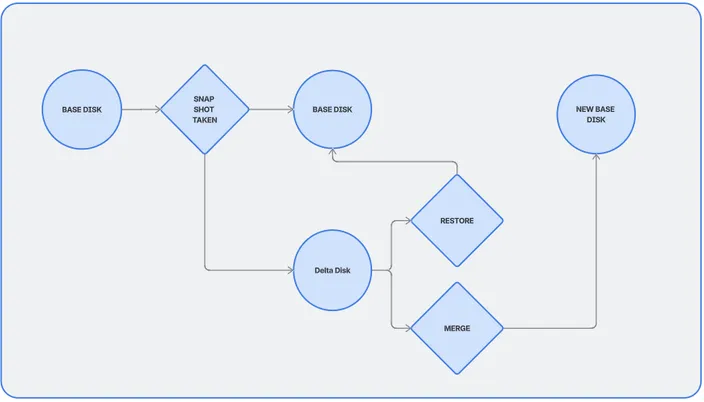
Simplified Snapshot Illustration
Below is a simplified illustration to show how base and delta disks relate in a snapshot chain:
VM snapshot illustration
- Base Disk: Original state of the VM at the time of the first snapshot.
- Delta Disk(s): Each snapshot adds a new layer of changes.
- Consolidation: Merges changes from delta disks back into the base disk.
Frequently Asked Questions (FAQ)
Are VM snapshots the same as backups?
No. Snapshots are short-term rollback tools, while backups are designed for long-term data protection. Snapshots live on the same storage as the VM and depend entirely on the hypervisor. If the host fails or storage is corrupted, snapshots are lost. Backups are stored separately and protect against hardware failure, ransomware, and accidental deletion.
How long should I keep a VM snapshot?
Ideally, hours to a few days at most. Snapshots should be deleted or consolidated as soon as you confirm a change was successful. Long-lived snapshots increase storage usage, slow down disk I/O, and make recovery more complex.
Do VM snapshots affect performance?
Yes, especially over time. As delta disks grow, every read and write operation has more overhead. A single short-lived snapshot usually has minimal impact, but multiple or old snapshots can noticeably degrade performance.
Can I use snapshots as protection against ransomware?
Not reliably. Because snapshots exist on the same storage and changes accumulate over time, ransomware or corruption can propagate into snapshots. Only off-host, immutable backups provide strong ransomware protection.
What happens when I delete a snapshot?
Deleting a snapshot does not discard your VM’s current state. Instead, the hypervisor merges the changes from the delta disk back into the base disk (a process called consolidation). This restores the VM to a single, consistent disk state.
Is it safe to take snapshots on production VMs?
Yes, when used carefully. Snapshots are commonly used in production before patches, upgrades, or configuration changes. The key is to keep them short-lived, limit snapshot chains, and monitor storage and performance closely.
How many snapshots can I take per VM?
Most hypervisors allow multiple snapshots, but this is not recommended as a long-term practice. Multiple snapshots create deep delta chains, which increase the risk of performance degradation and consolidation failures. Best practice is one snapshot at a time, removed promptly.
Should I shut down the VM before taking a snapshot?
Not always. Many hypervisors support live snapshots. However:
- Snapshots taken with memory included allow instant rollback.
- Application-consistent snapshots (via guest tools) are safer for databases and critical workloads.
For major changes, combining snapshots with backups is still best practice.
What’s the best overall strategy for using snapshots?
A healthy VM protection strategy looks like this:
- Use snapshots before risky or planned changes
- Keep snapshot lifetimes short
- Regularly consolidate snapshots
- Never rely on snapshots alone
- Always pair snapshots with scheduled, off-host backups
Snapshots give you speed and confidence; backups give you resilience and recovery.
Conclusion: Building a Safer VM Strategy
Used wisely, VM snapshots provide powerful rollback and testing capabilities, especially when you’re making changes that could impact stability or performance. However, they should never replace a solid backup strategy.
To get the most from snapshots:
- Use them before risky changes, not as permanent protection.
- Keep snapshot lifetimes short and consolidate them regularly.
- Combine snapshots with regular, off-host backups for true resilience.
By pairing disciplined snapshot usage with reliable backups, you can move faster, test more confidently, and better protect your virtual machines from both human error and unexpected failures.
Snapshots can easily be added to any of HostAfrica virtual machine offerings:
If you'd like to learn about the difference between virtual machines, check out our blog on the topic