Key Takeaways: Deploy a Node.js App from GitHub to a VPS
- To deploy a Node.js app, you clone your GitHub repository onto a VPS, install Node.js and dependencies, and configure the app for production.
- Environment variables and secrets (API keys, database credentials) never belong in GitHub; they live in a
.envfile on the server, kept out of version control. - PM2 keeps your Node.js process running after you close SSH, and restarts it automatically after crashes or a server reboot.
- Nginx sits in front of your app as a reverse proxy, so visitors hit your domain over HTTPS instead of your app's internal port directly.
- Your domain connects to the VPS through a DNS A record pointing at the server's IP. Nginx then routes that traffic to your app.
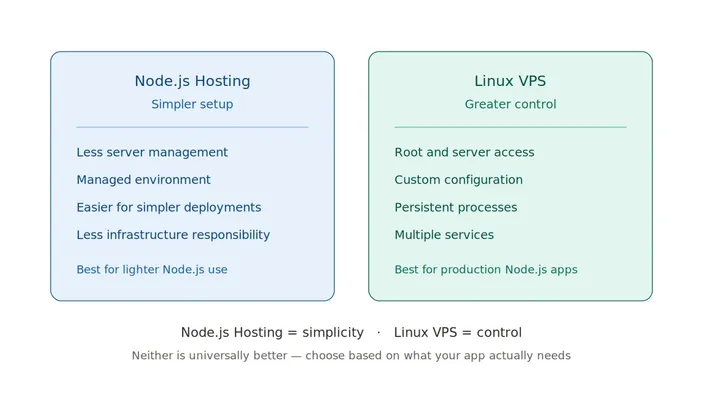
- HostAfrica's Node.js Hosting suits simpler setups where you don't want to manage a server; a Linux VPS suits apps that need root access and full control.
Node.js is an open-source JavaScript runtime environment that lets you run JavaScript on the server, not just in the browser. According to Stack Overflow's 2025 Developer Survey, it's the most-used web technology among professional developers, used by roughly half of respondents. That makes it a staple of modern web development, and many Node.js applications eventually need to make this exact jump from laptop to production. This guide covers that jump.
You've built a Node.js app. It could be an API, a web service, or a full web application. It runs fine locally with npm start. The source code is sitting in a GitHub repository, ready to go. Now you need it running on a real server reachable at a real domain, over HTTPS, without falling over the moment you close your laptop.
That gap trips up a lot of developers the first time. Not because any single step is hard, but because nobody explains why each piece exists.
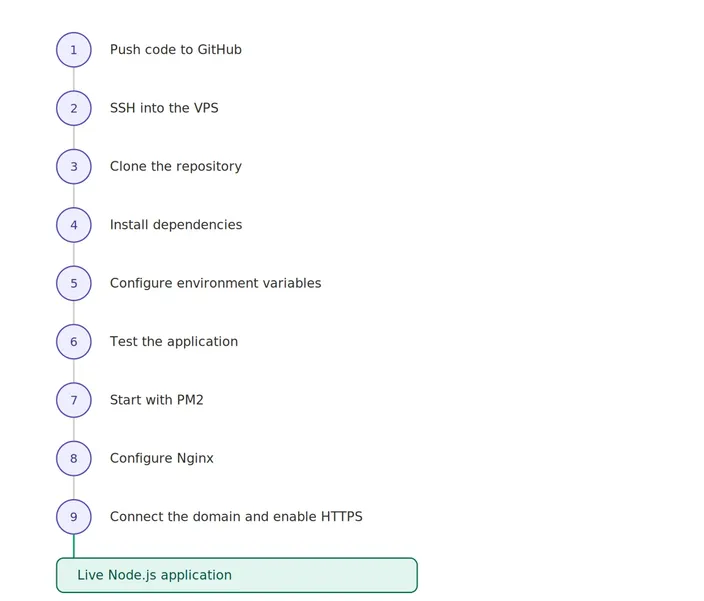
This guide shows you how to deploy a Node.js app along the whole path: GitHub → Linux VPS → Node.js/npm → environment variables → PM2 → Nginx → domain/HTTPS → live application. By the end, you'll understand what you're typing and why.
Step 1: Prepare the VPS
Connect over SSH:
ssh your_user@your_server_ipNew to SSH or the terminal? HostAfrica's beginner's guide to SSH and terminal basics is worth a read first.
Update packages, then install Git and Node.js:
sudo apt update && sudo apt upgrade -y
sudo apt install git -y
(Assumes Ubuntu/Debian; adjust for dnf/yum on AlmaLinux.)
The Node.js version you need depends on your project; check package.json for an engines field, or match whatever LTS you developed against. Grab it from the official Node.js downloads page, or check the release schedule for current LTS status. Confirm it installed correctly:
node -v
npm -v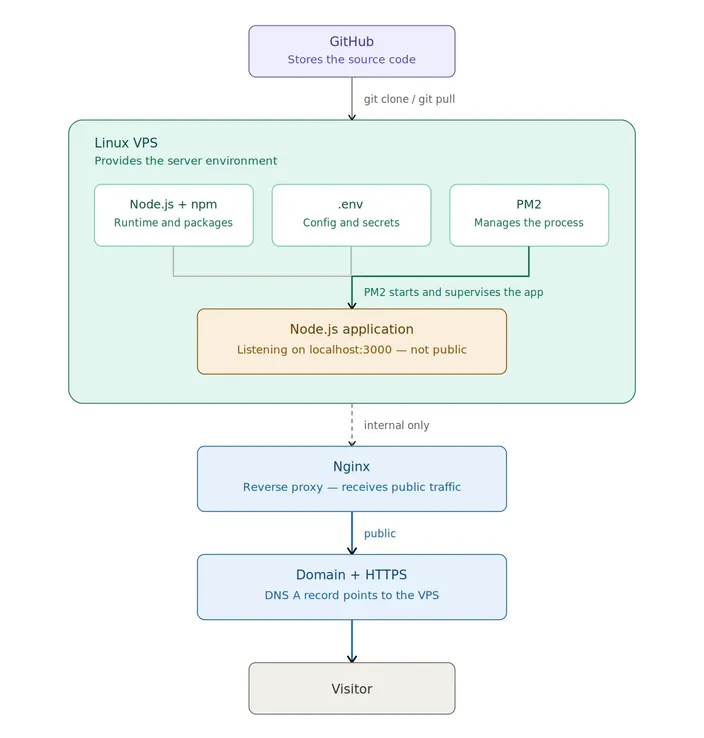
Step 2: Clone the GitHub Repository
Copy your repository's URL from its page on https://github.com (under the green Code button), then clone it onto the server:
git clone https://github.com/your-username/your-repo.git
cd your-repo
That works for public repos. Private ones need SSH keys or a deploy key. GitHub dropped password authentication for Git operations years ago. GitHub's SSH authentication docs cover generating and adding a key properly.
| Watch out: Don't embed credentials directly in a git clone command. If a token ends up in your shell history, you've effectively leaked it. |
Shaky on Git itself? HostAfrica has a beginner's intro to Git and GitHub.
Step 3: Install Dependencies
With the source code on the server, install the packages it depends on. If your repo has a committed package-lock.json, use npm ci rather than npm install:
npm ciIt's stricter than npm install: it installs exactly what's in the lock file, wipes any existing node_modules first, and fails if package.json and the lock file don't match. That's exactly what you want in a deployment: no version drift between your machine and the server.
No lock file, or unsure it's compatible? Fall back to npm install. Some projects also need a build step first; check package.json for a build script.
Step 4: Configure Environment Variables
Database credentials, API keys, session secrets none of that belongs in GitHub. If it's committed, anyone with repo access has it too.
| Security: Never commit production secrets to GitHub. Keep them in a .env file on the server, and make sure .env is in your .gitignore. |
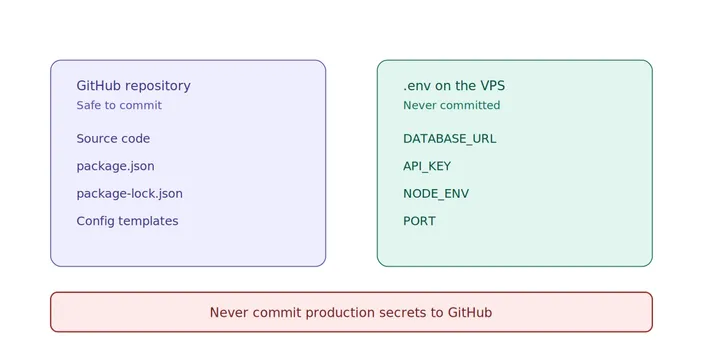
DATABASE_URL=postgres://user
@localhost/mydbAPI_KEY=your-production-key
NODE_ENV=production
PORT=3000
Lock down the file so only your app's user can read it:
chmod 600 .envMost apps read these via dotenv or process.env; either way, the rule's the same: code in Git, secrets on the server.
Step 5: Test the Application
Before adding PM2 or Nginx, confirm the app runs on the server as-is:
npm startIf it starts and you can reach it, say, on localhost:3000, though the actual port depends on your app, the fundamentals are working: Node.js installed correctly, dependencies resolved, env vars being read.
| Pro Tip: Get the application running first. Then configure the web-facing layers. If something breaks later, you'll already know whether the problem is your app or the infrastructure around it. |
Stop it with Ctrl+C. Running it directly in your SSH session isn't how it should run long-term.
Step 6: Keep It Running with PM2
npm start only runs as long as your SSH session stays open. Close the terminal, and the process dies. That's fine for testing, but not for a production web service.
| Good to Know: PM2 doesn't replace Node.js; it manages the process, keeps it alive, restarts it on crashes, and brings it back after a reboot. |
sudo npm install -g pm2
pm2 start app.js --name my-app
pm2 status
pm2 logs my-app
pm2 restart my-app
To survive a reboot:
pm2 startup
pm2 save
That covers the core workflow; see PM2's quick start guide and startup script docs for more.
Step 7: Put Nginx in Front of Node.js
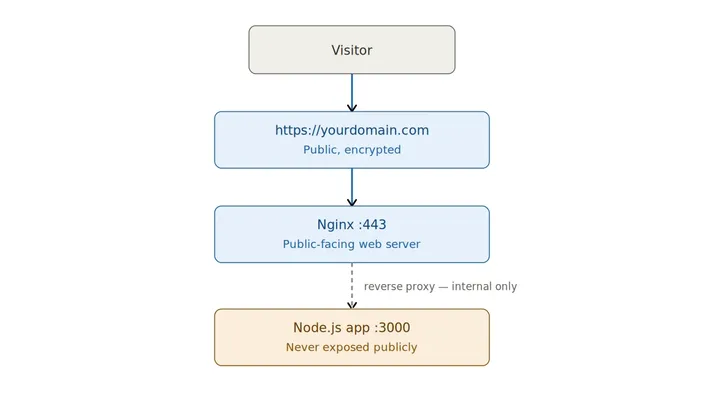
Your app's running, but only reachable on its internal port, not something to expose directly. Nginx solves this as a reverse proxy: it receives public traffic on ports 80/443 and forwards it internally.
Visitor → domain → Nginx → Node.js app (internal port)
sudo apt install nginx -yBasic config (e.g.,/etc/nginx/sites-available/your-app):
server {
    listen 80;
    server_name yourdomain.com;

    location / {
        proxy_pass http://localhost:3000;
        proxy_set_header Host $host;
        proxy_set_header X-Real-IP $remote_addr;
    }
}

sudo ln -s /etc/nginx/sites-available/your-app /etc/nginx/sites-enabled/
sudo nginx -t
sudo systemctl reload nginx
nginx -t checks your config before reloading; a bad config will stop Nginx from starting, so always test first.
Good to Know: Nginx is the public-facing web server. Your app keeps listening internally on port 3000; visitors never touch it directly. Full proxy_pass options are in Nginx's reverse proxy guide. |
Step 8: Connect the Domain and Enable HTTPS
Domain → DNS A record → VPS IP → Nginx → Node.js app
- Point the domain at your VPS with an A record.
- Update Nginx's config with the real domain in
server_name. - Test over plain HTTP first; confirm DNS and Nginx work before adding SSL.
- Enable HTTPS with Certbot, which automates issuing a free certificate from Let's Encrypt. See Let's Encrypt's getting-started guide.
- Verify by loading the domain over
https://and checking for a valid certificate.
Don't skip step 3: debugging DNS, Nginx, and SSL simultaneously is much harder than confirming each layer separately.
Updating the Application
Push to GitHub → SSH in → git pull → install/build if needed → restart with PM2
cd your-repo
git pull
npm ci   # if dependencies changed
pm2 restart my-app| Watch out: A git pull doesn't mean your running app has picked up the changes. Depending on the project, you may need to reinstall dependencies with npm ci or npm install, rebuild, or explicitly restart PM2. |
Deploying often? Worth eventually automating this with GitHub Actions, a separate setup outside the scope of your first deployment.
Node.js Hosting vs Linux VPS
| Node.js Hosting | Linux VPS | |
| Setup complexity | Simpler | You configure it yourself |
| Server management | Managed for you | Self-managed |
| Root access | No | Yes |
| Custom configuration | Limited | Full control |
| Persistent processes (PM2) | Not the intended use case | Yes |
| Multiple services | No | Yes |
| Best for | Lightweight Node use alongside a standard site | Production web applications like the one in this guide |
To be direct: HostAfrica's Node.js Hosting is DirectAdmin shared hosting, built primarily for PHP/MySQL sites with Node.js available for lighter use. An app needing PM2, a custom port, and a persistent process exactly what this guide covers needs the root access and control a Linux VPS provides.
Choose Node.js Hosting when simplicity matters more than control. Choose a Linux VPS when you need root access and full control over the environment.
Troubleshooting
| Problem | First thing to check |
| App won't start | Node.js version matches the project; dependencies installed cleanly |
| App crashes after starting | pm2 logs for the actual error; often a missing env var |
| Works locally, not on VPS | Compare Node.js versions and confirm env vars are set on the server |
| Wrong/unexpected port | What your app's actually listening on vs. what Nginx proxies to |
| PM2 shows app stopped | pm2 logs, then pm2 restart |
| 502 Bad Gateway | Nginx can't reach your app; check pm2 status |
| Domain doesn't load | DNS A record correct, and propagation complete |
| HTTPS not working | Certbot ran successfully for the right domain |
FAQ: Deploy a Node.js App from GitHub to a VPS
How do I deploy a Node.js app from GitHub?
Clone the GitHub repository onto your server, install Node.js and dependencies, configure environment variables, and run the app managed by PM2, with Nginx handling incoming traffic.
Can I host a Node.js app on a VPS?
Yes. A Linux VPS gives you root access and full environment control, which is what a production Node.js app with a process manager and reverse proxy needs.
How do I keep a Node.js app running after closing SSH?
Use a process manager like PM2; it runs your app independently of your SSH session and restarts it after crashes or reboots.
Do I need Nginx for a Node.js app?
Not strictly, but it's standard practice. It handles public traffic and HTTPS, and proxies to your app's internal port instead of exposing Node.js directly.
Can I automatically deploy from GitHub?
Yes, typically with GitHub Actions triggering a deploy on push, a separate setup from the manual deployment path covered here.
What's the difference between Node.js Hosting and a VPS?
Node.js Hosting is managed shared hosting for lighter Node use; a Linux VPS gives you root access and control, which production apps using PM2 actually need.
Conclusion
GitHub stores your source code. The VPS provides the server. Node.js runs the app. PM2 keeps the process alive. Nginx handles incoming traffic. The domain and HTTPS make it publicly and securely accessible.
Once that's working, you've got a real, repeatable deployment, not a one-off that happens to work.
If you're weighing where to run it, HostAfrica's Node.js Hosting suits a simpler managed setup, while a Linux VPS fits the control this guide walks through. Once your domain points to the server, HostAfrica's DNS setup guide is a useful reference for getting the records right.