Key Takeaways: How to Deploy an App from GitHub to a VPS
- GitHub stores and version-controls your application's source code. A VPS provides the infrastructure for the server that runs that code.
- Most GitHub-to-VPS deployments follow the same basic sequence: connect to the server, clone the repository, install dependencies, configure the environment, build/run the app, then expose it securely over the web.
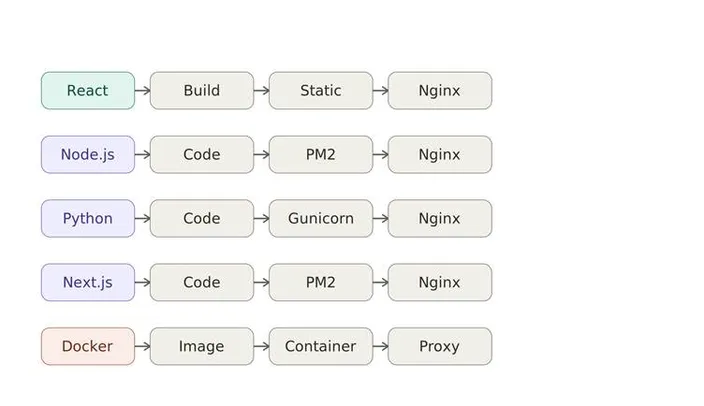
- The exact deployment steps depend on your stack. A React app can usually be built into static files and served directly, while Node.js, Python, and Next.js apps typically need a running application process.
- Docker packages your app and its dependencies together, which makes deployments more consistent across environments, but it's an alternative approach, not a mandatory one.
- Once you've deployed a few times manually, tools like GitHub Actions can automate the process so every
git pushcan trigger a fresh deployment.
You've built something. It works on your machine, it's committed, and it's sitting safely in a GitHub repository. Now comes the part nobody really teaches you in a coding course: turning that repository into something people can actually visit in a browser.
This trips up developers who are otherwise perfectly comfortable with Git. You know how to branch, commit, and push. But git push doesn't make your app live; it just updates a copy of your code on GitHub's servers. GitHub is brilliant at storing and versioning code. It was never designed to run it.
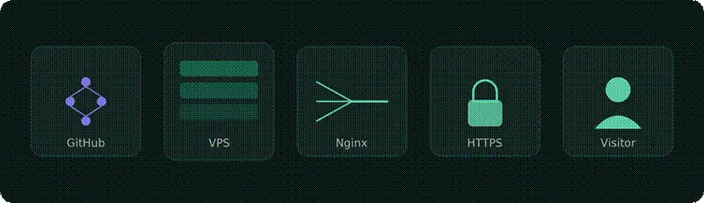
| Key Point: GitHub and a VPS solve two different problems. GitHub manages where your code lives and how it changes. A VPS provides where your code actually runs. Every deployment workflow in this guide is really just connecting those two things. |
That's where a VPS (Virtual Private Server) comes in. A VPS gives you a real Linux environment with CPU, memory, storage, and a public IP address where you can install, configure, and keep your application running around the clock. Once you understand the basic path from GitHub to a VPS, you can apply it to almost any project.
In this guide, we'll walk through that shared deployment workflow, then look at how it plays out slightly differently for five common types of applications: Node.js, Python, React, Next.js, and Docker-based apps.
What You Need Before Deploying
Before you touch a terminal, make sure you've got the basics in place:
- A GitHub repository with your application code, ideally with a working
mainorproductionbranch. - A Linux VPS. This is where your app will actually run. A HostAfrica Linux VPS gives you root access to a clean, flexible Linux environment, so you can configure the server to match your application’s exact requirements.
- SSH access to that server typically includes an IP address, a username, and either a password or (preferably) an SSH key. You generate a key pair locally with ssh-keygen, then copy the public key into the server's ~/.ssh/authorized_keys file (your SSH authorized keys list). The private key stays on your machine or, for automated deployments, in a GitHub secret. Never share it or commit it to your repository.
- Git installed on the server, so you can clone or pull your repository directly onto it.
- The runtime your application needs: Node.js, Python, Docker, or similar, depending on what you built.
- A domain name, if you want the app reachable at a proper URL rather than just an IP address. You'll need the right DNS records pointing to your server's IP.
None of this needs to be complicated. A basic VPS plan is enough to get a small-to-medium application running comfortably, and you can always resize as traffic grows.
How GitHub-to-VPS Deployment Works
This is the part that matters most, because once it clicks, every framework-specific variation makes a lot more sense.
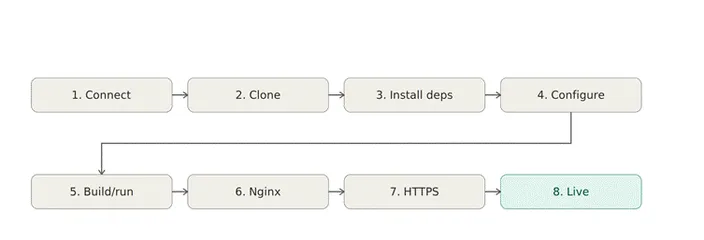
At a high level, the journey looks like this:
Develop → Push to GitHub → Connect to your VPS → Clone/pull the repo → Install dependencies → Configure environment → Build/run the app → Set up Nginx → Add HTTPS → Live
Let's break that down.
1. Connect to your server
You SSH into your VPS from your local machine:
ssh your_user@your_server_ipFrom here, everything happens on the server itself; you're working directly in the Linux environment where your app will live.
2. Clone your repository
The first time you deploy, you clone the repo onto the server:
git clone https://github.com/your-username/your-repo.git
 cd your-repo
For every deployment after that, you'll usually just pull the latest changes instead of cloning again:
git pull origin mainGood to know: That works as-is for a public repository. For a private one, plain git clone will fail; you'll need to authenticate first, either by adding an SSH key to your server and cloning over git@github.com:..., or by using a personal access token with HTTPS. Don't assume every repo "just clones" without checking which one you're dealing with. |
3. Install dependencies
Almost every application has some form of dependency management: npm install for Node.js, pip install for Python, and so on. This step downloads everything your code needs to actually run, based on files like package.json or requirements.txt.
4. Configure environment variables
Production apps almost always need configuration that shouldn't live in your code: database credentials, API keys, secret tokens. These are usually stored in a .env file on the server (never committed to GitHub) or set as system environment variables. Some teams keep a dedicated .env.production file separate from their local .env; either approach works, as long as production secrets never end up in version control.
Watch out: Never commit your .env file to GitHub. If secrets end up in a public (or even private) repository's history, treat them as compromised and rotate them; removing the file later doesn't erase it from Git history. |
5. Build and/or run the application
Depending on the stack, this might mean compiling a production build (React, Next.js), starting a persistent process (Node.js, Python), or building and launching containers (Docker). We'll get specific about this in the next section.
6. Set up Nginx as a reverse proxy
Your application probably runs on an internal port like 3000 or 8000. You don't want visitors typing yourdomain.com:3000 into their browser, so Nginx sits in front of your app as a reverse proxy. It receives requests on the standard web ports (80/443) and forwards them to your application internally. If you're new to Nginx, HostAfrica's guide to Nginx basics is a good primer on how its configuration files work.
A minimal Nginx config might look like this:
server {
    listen 80;
    server_name yourdomain.com;

    location / {
        proxy_pass http://localhost:3000;
        proxy_set_header Host $host;
        proxy_set_header X-Real-IP $remote_addr;
        proxy_set_header X-Forwarded-For $proxy_add_x_forwarded_for;
        proxy_set_header X-Forwarded-Proto $scheme;
    }
 }
Those last two headers become important once you add HTTPS. They tell your application the visitor’s original IP address and whether the original request used HTTP or HTTPS. Without them, your app sees every request as coming from Nginx itself, instead of the actual visitor.
Quick Tip: After editing any Nginx config, run nginx -t to check for syntax errors before reloading with systemctl reload nginx. This one habit prevents most self-inflicted downtime. |
7. Add HTTPS
Once Nginx is routing traffic correctly, you'll want a TLS/SSL certificate so your site loads securely over HTTPS. Tools like Certbot can automate obtaining a free SSL/TLS certificate from Let’s Encrypt and renew it automatically before it expires.
8. Your app is live.
At this point, requests to your domain hit Nginx, which passes them to your running application, which pulls its configuration from environment variables, using code that originally came from GitHub.
Deploying Different Types of Apps from GitHub
The steps above are consistent across most projects. What changes is what happens after you install the dependencies: how your application is built, started, and kept running on the server.
Deploy a Node.js App from GitHub
After cloning your repo and running npm install, a typical Node.js app needs:
- A
.envfile for configuration (database URLs, ports, secrets). - A start command, often something like
node server.jsornpm start. - A process manager like PM2 to keep the app running in the background, restart it if it crashes, and start it automatically after a server reboot:
pm2 start server.js --name my-app
 pm2 save
Nginx then proxies requests to whatever port your Node app is listening on. This isn't a complete Node.js production guide; there's more to consider around clustering, logging, and monitoring, but it's enough to get an app reliably running. If you'd rather skip managing the runtime yourself, HostAfrica's Node.js hosting handles that layer for you.
Deploy a Python App from GitHub
Python apps typically run inside a virtual environment to keep dependencies isolated from the rest of the system:
python3 -m venv venv
 source venv/bin/activate
 pip install -r requirements.txt
From there, the process depends on your framework. Django, Flask, and FastAPI apps aren't usually run directly in production; instead, they sit behind an application server like Gunicorn (common for Django and Flask) or Uvicorn (common for FastAPI and other ASGI apps), with Nginx handling the public-facing side.
Deploy Next.js from GitHub to a VPS
Next.js sits in an interesting spot. Depending on how the app is built, it may need a persistent Node.js server running to handle server-side rendering and API routes; it's not always a simple static build.
A typical flow looks like:
npm install
 npm run build
 pm2 start npm --name next-app -- start
Nginx then proxies to the Next.js server, just like with a plain Node.js app. If your project’s configured for full static export, the deployment starts to look a lot more like the React example below. That, however, depends entirely on your app's configuration, so don't assume it applies without checking.
| Good to Know: Whether your Next.js app needs a persistent Node.js server or can be exported as static files depends on your next.config.js settings and which features you use (like server-side rendering or API routes). Check your build output before assuming either path applies. |
Deploy a React App from GitHub to a VPS
This is where things get much simpler, making it a good option for beginners. A typical client-side React app doesn't need a persistent server process; it just needs to be built and served.
npm install
 npm run build
This produces a folder full of static HTML, CSS, and JavaScript files, commonly dist for Vite-based projects, or build if you're using Create React App or a similar tool. Check your project's build output before assuming the folder name. The output directory depends on the tooling you used to set up the project, not on React itself. You point Nginx directly at that folder, and it serves the files to visitors; no application runtime is required on the server side:
root /var/www/your-app/dist;
 index index.html;
Just make sure the path matches whatever your build tool actually generated dist, build, or something else entirely if you've customised it.
No PM2, no process manager, no application server. Just files and a web server.
Deploy a Docker App from GitHub
Docker takes a different approach: instead of installing dependencies directly on the server, you package your application and everything it needs into a container image, defined by a Dockerfile in your repository. If you're setting up Docker on a fresh VPS for the first time, HostAfrica's Docker VPS setup guide walks through installing it correctly.
The basic flow:
git clone https://github.com/your-username/your-repo.git
 cd your-repo
 docker compose up -d --build
Docker Compose is useful when your app depends on other services, such as a database, a cache, or a background worker. It lets you start all of these services together using a consistent configuration. Nginx (or another reverse proxy) still typically sits in front, routing external traffic to the right container.
As with a non-Docker deployment, keep production secrets out of your repository. Provide them to your containers through environment variables or your Compose configuration, not by baking them into the image or committing a .env file.
Docker isn't automatically "better" than the approaches above; it's a different way of managing dependencies and consistency, and it comes with its own learning curve.
| Pro Tip: If your app already runs the same way in development and production thanks to Docker, that consistency is the main win, not "better performance." It's a good option when you're tired of "it works on my machine," not because it's inherently superior to a plain Node.js or Python deployment. |
Which Deployment Method Does Your App Need?
| Application | Typical Deployment | Runtime | Common Production Tool |
| Node.js | Node application | Node.js | PM2 + Nginx |
| Python | Application server | Python | Gunicorn/Uvicorn + Nginx |
| React | Static build | Browser | Nginx |
| Next.js | Node application (or static export, if configured) | Node.js | PM2 + Nginx |
| Docker | Container | Docker Engine | Docker Compose + reverse proxy |
Treat this as a general guide rather than a strict rulebook; plenty of projects mix and match, especially once Docker or custom build pipelines are involved.
What Happens When You Update Your Code?
Manually updating a live app is straightforward: SSH in, git pull, reinstall dependencies if needed, rebuild if needed, and restart the process (pm2 restart my-app, or rebuild your Docker containers). It works, but it's repetitive, and it's easy to forget a step under pressure.
That's where developers start looking at GitHub Actions and CI/CD pipelines. The idea is simple: instead of you typing the same deployment commands every time, a workflow does it for you, triggered automatically by a push:
Code change → git push → GitHub → GitHub Actions → connect to VPS → pull latest code → install/build → restart application → live

Your GitHub workflows live as YAML files under .github/workflows in your repository. A basic deployment workflow might start like this:
name: Deploy to VPS

 on:
   push:
    branches:
    - main

 jobs:
   deploy:
    runs-on: ubuntu-latest

    steps:
    - uses: actions/checkout@v4
A few things worth unpacking here. The on: push: branches: [main] block tells GitHub Actions to trigger this workflow whenever someone pushes to the main branch.
Under jobs, deploy is just a name you're choosing for this particular job; call it whatever makes sense to you. In plain terms, deploy runs on Ubuntu latest: the runs-on: ubuntu-latest line tells GitHub which type of runner to use a temporary Ubuntu machine that GitHub itself hosts and manages, not your VPS.
Don't confuse the two: a VPS running Debian or CentOS can still deploy through an ubuntu-latest runner without any conflict. The runner is simply where your workflow steps execute; it isn't where your application ultimately lives.
The steps section lists what the job actually does and uses actions/checkout@v4 as the standard first step in almost every workflow; it checks out your GitHub repository's code onto that runner so later steps can work with it.
From there, a real deployment workflow typically adds a step that connects to your VPS over SSH and runs the same commands you'd type manually: pull the latest code, install dependencies, rebuild if needed, and restart the app.
To make that connection work securely, you'd generate a dedicated SSH key pair with ssh-keygen, add the public key to your VPS user's ~/.ssh/authorized_keys file exactly like you did for your own access, and then store the matching private key as a GitHub secret under your repository's Settings, Secrets and variables, then Actions.
The workflow accesses the secret at runtime to authenticate with your server, keeping the private key out of your code, workflow file, and logs.
It's still fundamentally the workflow you just learned; GitHub Actions runs those steps for you, automatically, instead of you doing it by hand. Setting up the actual workflow file is a good topic for its own guide; for now, it's enough to know the pattern exists and that it's a natural next step once manual deployment starts feeling repetitive.
It's also worth knowing that this kind of automation doesn't have to stop at CI/CD pipelines. Developers increasingly expect their infrastructure to fit into the tools they already use day to day. This includes AI-assisted development workflows, rather than managing everything through a browser dashboard.
That's the idea behind the HostAfrica API, which lets you interact with HostAfrica services and infrastructure programmatically instead of clicking through a control panel. By connecting via MCP, you can link HostAfrica's capabilities to compatible AI agents and development tools.
Neither is required for a basic GitHub-to-VPS deployment, although they're worth knowing about once you're ready to push automation further.
Common GitHub-to-VPS Deployment Problems
A few issues come up again and again for first-time deployers:
- Missing environment variables. The app works locally but crashes on the server. Check that your
.envfile exists and loads correctly. - Wrong ports. Nginx is proxying to a port your app isn't listening on. Double-check both sides match.
- App stops when you close SSH. If you run your app directly in the terminal, it stops when the session ends. Use PM2, a systemd service, or Docker, so it runs independently.
- Dependency or build errors. Often a Node.js or Python version mismatch between your local machine and the server.
- Permissions issues. Especially common with file uploads or processes run as the wrong user.
- Firewall blocking traffic. Make sure ports 80, 443, and your SSH port are open. HostAfrica's guide to setting up a Linux firewall covers the basics.
- DNS not pointing at your server. Check your domain's A record if the site won't load.
- Nginx configuration errors. Run
nginx -tto test your config before reloading. - SSL certificate problems. Usually fixed by re-running Certbot once your domain is correctly pointed.
| Watch out: When you enable a firewall, confirm your SSH port is explicitly allowed before you turn the firewall on, and test that a new connection still works before closing your current session. Locking yourself out of a remote server with no console access can mean losing access entirely. |
Most of these come down to one question: which layer is responsible? GitHub, the VPS, the application, or Nginx? Once you know that, the fix is usually quick.
Where a VPS Fits
A managed platform can get an app online fast, but it takes decisions out of your hands: runtime versions, process management, and what else can run alongside your app. A VPS gives you that control back:
- Choose your own runtimes, versions, and dependencies.
- Keep applications running persistently, exactly the way you've configured them.
- Full root access to the server.
- Native support for Docker and containerised workloads.
- Run multiple applications or services on the same server if you want to.
- Design your own deployment and automation workflow, rather than working within someone else's.
- Manage infrastructure programmatically through the HostAfrica API as your setup grows.
- Explore AI-assisted infrastructure workflows through the HostAfrica MCP, if that's a direction you want to take.
A HostAfrica Linux VPS gives you that infrastructure layer a clean, configurable Linux server ready for whatever you clone onto it from GitHub.
FAQs: How to Deploy an App from GitHub to a VPS
How do I deploy an app from GitHub to a VPS?
Connect over SSH, clone your repository, install dependencies, configure environment variables, build or run the app, then set up Nginx and HTTPS so it's reachable online.
Can I host a GitHub project on a VPS?
Yes. GitHub stores your code; a VPS is where it actually runs. A public repository clones with just the URL; a private one needs an SSH key or access token configured first.
Can GitHub automatically deploy to a VPS?
Not by default, but GitHub Actions can automate it by SSHing into your server and running deployment commands whenever you push code.
Do I need Nginx to deploy an app on a VPS?
Not strictly, but it's standard practice. Nginx handles incoming traffic, HTTPS, and routing so you're not exposing your app's internal port directly.
What is the difference between GitHub and a VPS?
GitHub stores and versions your source code. A VPS is the server that actually runs your application and makes it accessible online.
Can I deploy multiple applications on one VPS?
Yes. A VPS can run several apps side by side, usually distinguished by port, domain, or subdomain, with Nginx routing traffic to the right one.
Conclusion
Once you strip away the framework-specific details, GitHub-to-VPS deployment comes down to one simple idea: GitHub manages your code, and the VPS runs it. Everything else Nginx, environment variables, process managers, and Docker exists to support that basic relationship.
Understanding that pattern makes it much easier to move between stacks. Deploying a Python API instead of a Node.js app isn't a completely different skill; it's the same workflow with a different runtime and a different production tool in the middle.
Ready to put this into practice? Deploy your next application on a HostAfrica Linux VPS and start with a clean, configurable environment built for exactly this kind of deployment.