
TL;DR: FTP Explained
- FTP is a file transfer method for websites. It allows you to upload, download, and manage files between your computer and a web server.
- You don’t need technical skills to use it. FTP clients like FileZilla provide an easy drag-and-drop interface, so you don’t need to use the command line.
- SFTP is the secure option. Standard FTP is unencrypted and risky, while SFTP encrypts data and is the recommended method for safe transfers.
- Website files follow a structured directory system. Important folders like public_html store live website files, while others handle logs, temporary files, or CMS data.
- There are alternatives and common fixes. You can use tools like cPanel or Git instead of FTP, and most connection issues can be solved by checking credentials, settings, or network restrictions.
To get your website online, you first need to host it on a server. Once your server is set up, you can use FTP to upload your website files directly from your local computer.
In this guide, we’ll walk through everything you need to know about FTP, including what it is, how it works, how to set it up, and how to use it safely.
What is FTP?
FTP (File Transfer Protocol) is a standard way to transfer files between your computer and a remote server over a network.
A simple way to think about FTP is like a delivery system. When you upload files, you are “delivering” your website’s content to the server. When you download files, you are bringing them back to your local machine.
FTP also lets you organize folders, rename files, and delete anything you no longer need on the server.
Do You Need to Use the Terminal for FTP?
You don’t have to use the terminal to work with FTP, although it is an option for more advanced users. Many people prefer using graphical tools because they are easier to understand and require no command-line knowledge.
These tools are called FTP clients, and they provide a simple interface where you can drag and drop files between your computer and the server.
How to Transfer Files Through an FTP Client – Step-by-Step
Here’s how you can transfer files between your computer and your server using an FTP client. For this example, we’ll use FileZilla since it’s free and easy to use.
- Go to the official FileZilla website and download the client.
- Install the client on your computer.
- Open FileZilla. At the top, you’ll see fields for Host, Username, Password, and Port. Enter the credentials provided by your hosting provider.
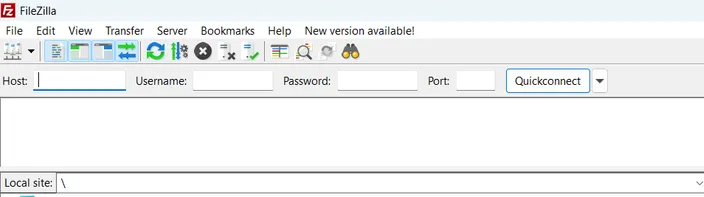
- Click the “Quickconnect” button. If your details are correct, FileZilla will connect and show your server files.
- The left side shows files on your computer, and the right side shows files on your server.
- To upload to your server, drag files from the left side and drop them into the right side.
- To download, drag files from the right side to the left side.
- You can right-click to delete, or create new folders directly on the server.
- Check the transfer queue at the bottom to make sure all files are uploaded or downloaded successfully.
Once done, your files will be in place on the server, and your website content will be ready to go live.
Types of FTP
There are two main types of FTP that you’ll come across when working with servers and file transfers:
Plain FTP (Standard FTP)
This is the standard FTP method that we have been discussing so far. It allows you to transfer files between your computer and a server using a username and password.
However, it does not encrypt data during transfer, which means your credentials and files can be exposed to malicious actors.
SFTP (Secure File Transfer Protocol)
SFTP is a more secure way to transfer files. It uses SSH under the hood, which means your data is encrypted during transfer, making it much safer than standard FTP.
With SFTP, all communication between your computer and the server is protected, which is why it’s commonly used for managing websites—especially on VPS environments like those offered by HostAfrica.
Apart from these, there are a few other types of FTP that are not as widely used. These include FTPS (FTP over SSL) and TFTP (Trivial File Transfer Protocol).
Understanding the Website Directory Structure Over FTP
Most hosting setups follow a standard directory structure to keep website files organized and easy to manage.
Here are some of the main folders you’ll usually come across when you access your server over FTP:
Root Directory
This is the top-level folder of your hosting account. It contains all other folders and files related to your website. Think of it as the main container that holds everything.
public_html (or www)
This is the most important folder for your website. Any files you place here are publicly accessible on the internet. Your homepage lives in this directory.
wp-content (WordPress sites)
If you’re using WordPress, this folder stores your themes, plugins, and uploaded media like images and videos.
wp-admin and wp-includes (WordPress sites)
These folders are part of the WordPress core. They handle the admin dashboard and essential system functions. You usually don’t need to modify these unless you’re troubleshooting or updating manually.
logs
This folder contains log files that record server activity and errors. It can be helpful when you’re trying to figure out why something isn’t working on your site.
tmp (Temporary Files)
This directory is used to store temporary data created by your website or server processes. Files here are usually not meant to be permanent and may be cleared automatically.
Alternatives to FTP
There are a few other ways you can manage (or transfer) your website files if you don’t have FTP access.
- cPanel File Manager: If your hosting uses cPanel, you can manage files directly from your browser. The File Manager lets you upload, edit, delete, and organize files without needing to install any extra software.
- Web-based hosting dashboards: Many hosting providers offer their own file management tools inside custom dashboards. These work similar to cPanel and are useful for quick changes when you don’t want to use an FTP client.
- Version Control Systems (Advanced Users): Tools like Git allow you to manage code changes and deploy files to your server through commands. This is commonly used by developers working on larger or collaborative projects.
FTP Troubleshooting Guide
Sometimes FTP connections or file transfers don’t work as expected. Below are some common issues you might run into and how to fix them.
Connection Refused
This happens when your FTP client is unable to connect to the server.
How to Solve
- Double-check your host, username, password, and port
- Confirm that FTP access is enabled in your hosting account
- Check if your firewall or antivirus is blocking the connection
Authentication Failed
This error appears when your login credentials are incorrect or not accepted.
How to Solve
- Re-enter your username and password carefully
- Reset your FTP password from your hosting panel
- Make sure you’re using the correct protocol (FTP vs SFTP)
Timeout Error
This occurs when the server takes too long to respond and the connection drops.
How to Solve
- Check your internet connection
- Try reconnecting after a few minutes
- Increase the timeout limit in your FTP client settings
Failed File Transfers
Sometimes files don’t upload or download properly.
How to Solve
- Check file permissions on the server
- Make sure you have enough storage space available
- Try uploading smaller batches of files
- Reconnect and retry the transfer
- Talk to a customer support representative if issue persists
Passive Mode Issues
Some networks block FTP connections unless passive mode is enabled.
How to Solve
- Enable passive mode in your FTP client settings
- Disable active mode if it’s turned on
- Check your firewall settings and allow FTP connections
FAQs About FTP
Finally, here are some frequently asked questions about FTP.
What is an FTP Server?
An FTP server is a system that stores your website files and allows you to access them using FTP. It listens for incoming connections and lets authorized users manage files.
What is FTP used for?
FTP is used to upload and download files between your computer and a web server.
Is FTP safe to use?
Standard FTP is not secure because it doesn’t encrypt data, so it’s better to use SFTP for safer file transfers.
What is the difference between FTP and SFTP?
FTP transfers files in plain text, while SFTP encrypts data using SSH, making it more secure.
Do I need an FTP client to use FTP?
No, but using FTP clients like FileZilla makes the process much easier with a simple interface.
What port does FTP use?
FTP typically uses port 21 for connections, while SFTP uses port 22.
Can I use FTP in my browser?
Some browsers used to support FTP, but most modern browsers have removed this feature, so using an FTP client is recommended.
Where should I upload my website files using FTP?
You should upload your website files to the public_html (or www) directory so they are accessible online.
Why is my FTP connection failing?
This can happen due to incorrect login details, wrong port, firewall restrictions, or server issues.
Conclusion
FTP is a standard web technology that every website owner should know. We hope that this guide has helped you understand how it works and how you can use it to move files freely between your server and your computer.
If you found this FTP guide helpful, these related articles can help you upload your website, troubleshoot FTP issues, and understand how website data is moved between servers:
